FortiGate in Azure: how to deploy an NVA from the Marketplace
FortiGate in Azure as an NVA: rules for SKU and licensing, NICs and bandwidth, plus a step-by-step single VM deployment from the Azure Marketplace.
Last updated on

Table of Contents
Do you still need a firewall in the cloud? Often, yes. In this first episode of the FortiGate in Azure series I explain how to integrate a Network Virtual Appliance (NVA) into Microsoft Azure and how to deploy a FortiGate firewall from the Marketplace for the first time. I didn’t pick FortiGate because it’s “the best”, but because it’s a technology I know well and have deployed several times for customers: the goal is to understand how to bring a VM running a firewall operating system into Azure, the right way.
The series has three episodes:
- this article: NVA theory and deploying FortiGate as a single VM;
- base configuration, routing and UDRs, with Azure Virtual Desktop traffic flowing through FortiGate;
- protecting PaaS services with Private Endpoints through FortiGate.
What using an NVA in Microsoft Azure means
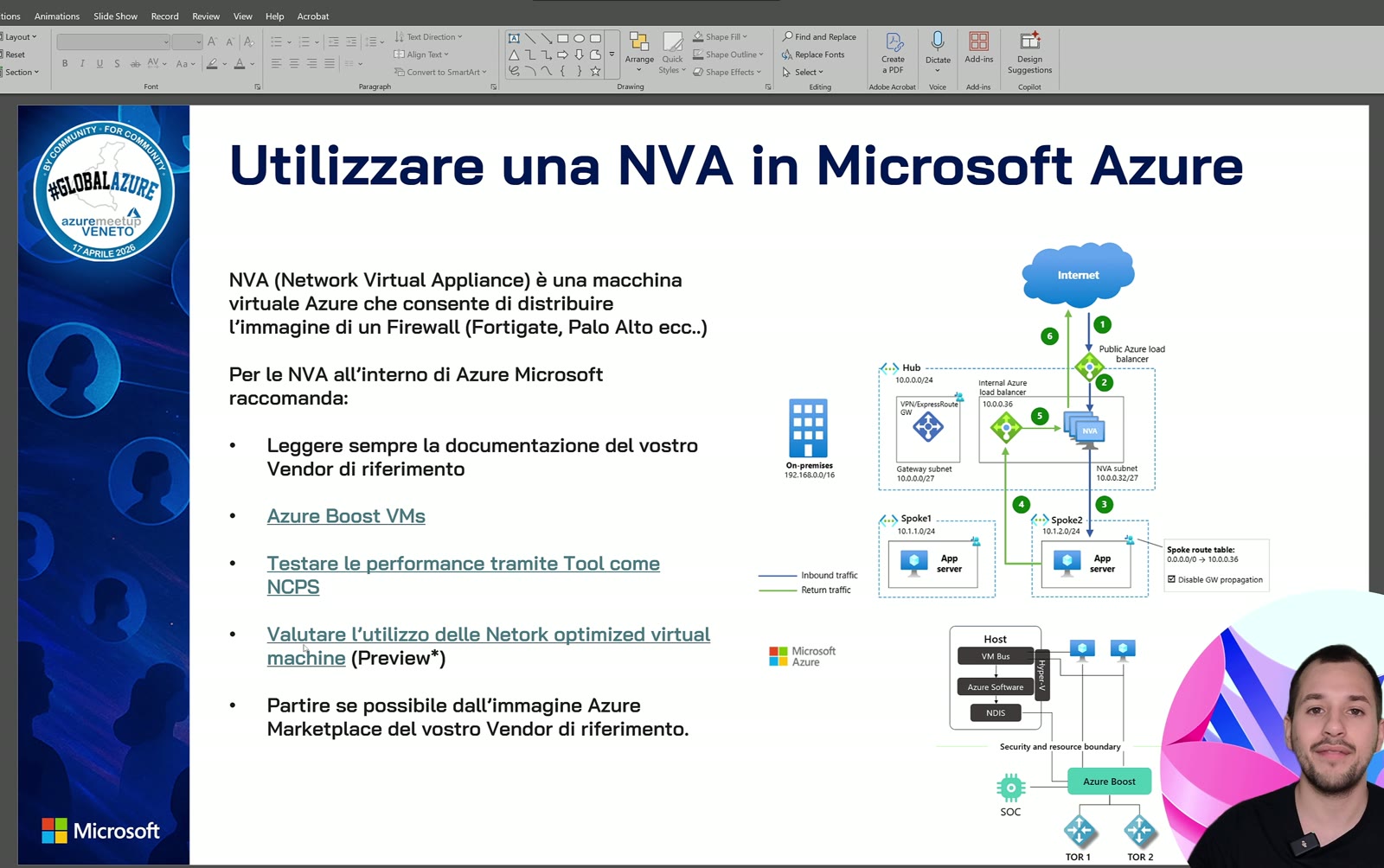
For the theory I’m using the slides I presented at this year’s Global Azure in Vicenza. Using an NVA in Azure means deploying a virtual machine, following the vendor’s guidance, that acts as a firewall. Precisely because it’s different from every other VM, there are a few rules to follow.
First, where it goes: nine times out of ten an NVA lands in a hub, or in a secure hub if you use Azure Virtual WAN. It’s a central, shared networking service and must be managed as such. If you’re designing the topology, see my article on Azure Virtual Network Manager and hub and spoke.
The rules I always follow
- Read the vendor documentation. That’s where you find unsupported SKUs, caveats and specific rules. A Cisco Meraki is deployed differently from a FortiGate: different technologies and vendors, different procedures.
- Use Azure Boost VMs, generation 6 onwards. These machines offload network traffic directly to the NIC, using the new MANA network adapters introduced by Microsoft.
- Test performance after deployment, with a network testing tool available on GitHub, to check that sizing and networking are right and that you get the bandwidth you expect.
- Evaluate network optimized VMs, still in preview: SKUs dedicated to this scenario. They’ll likely cost more, but for high-bandwidth scenarios they may be worth it.
- Start from the vendor’s Marketplace image: recommended SKUs are ready and the image is always updated to the latest OS version.
FortiGate in Azure: licensing and architectures
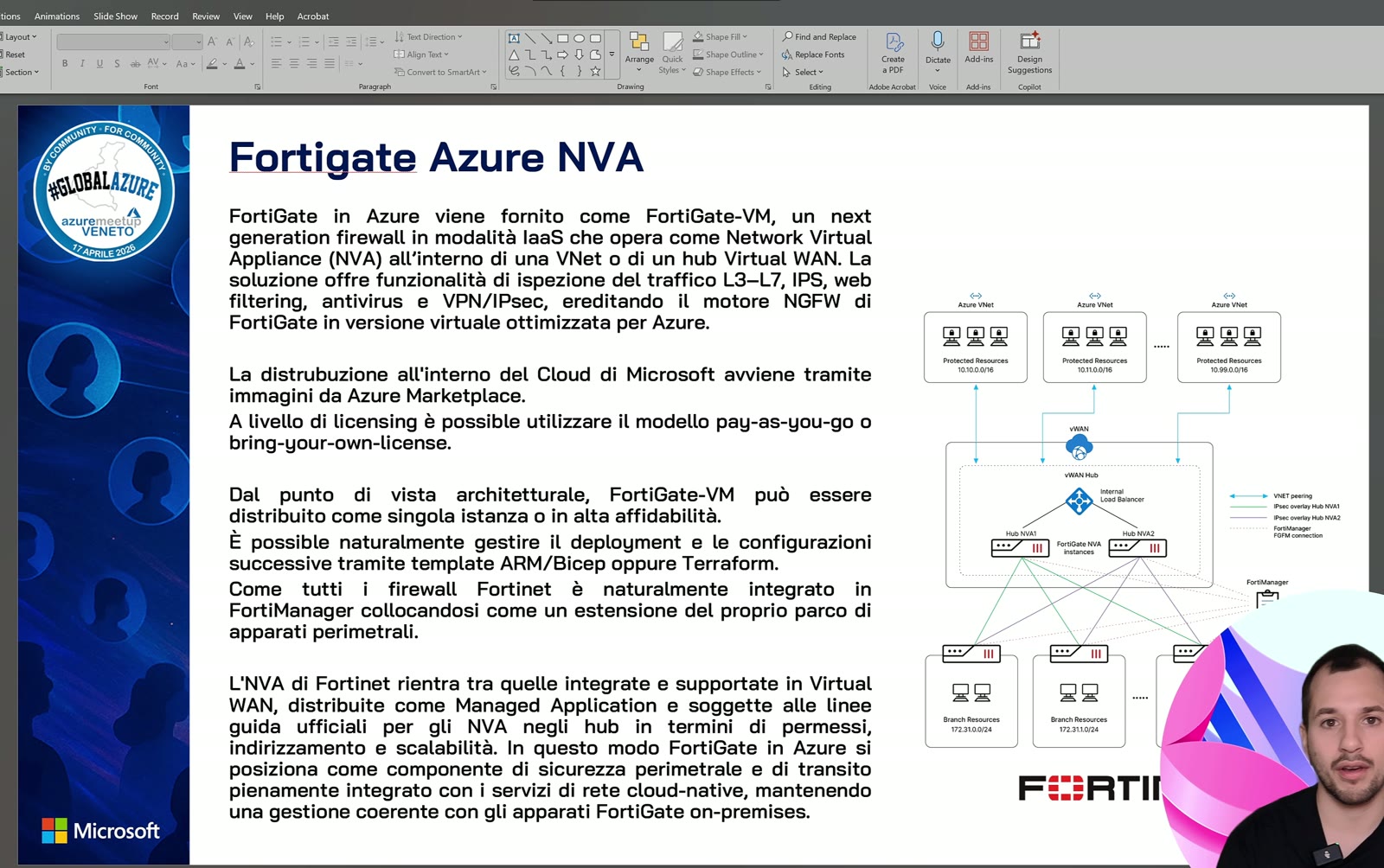
There are two licensing paths:
| Mode | How it works | When I like it |
|---|---|---|
| BYOL (Bring Your Own License) | Buy an N-month license from a distributor and enter it | Stable environments with licenses already managed |
| Pay As You Go | Consumption-based license; stop the VM and you pay neither license nor compute, only storage (a few GB) | Tests, changing environments, first deployments |
Pay As You Go for FortiGate also includes a 30-day free trial of the license: compute and storage are still billed at Azure rates. The wizard also offers FortiFlex, which can be interesting, for example, in disaster recovery scenarios.
FortiGate can be deployed as a single VM, as an active-active or active-passive cluster (fully supported), or inside Azure Virtual WAN to build a secure hub with FortiGate. Virtual WAN, however, is an enterprise solution with significant costs.
Adding NICs to a VM does not increase its total bandwidth: bandwidth depends on the SKU. If you need more throughput, scale up the SKU instead of adding five or six network cards.
A FortiGate VM has a public IP and needs at least two NICs to work: that’s the default, but you can add more, each one mapping to a firewall interface.
Deploying FortiGate from the Azure Marketplace
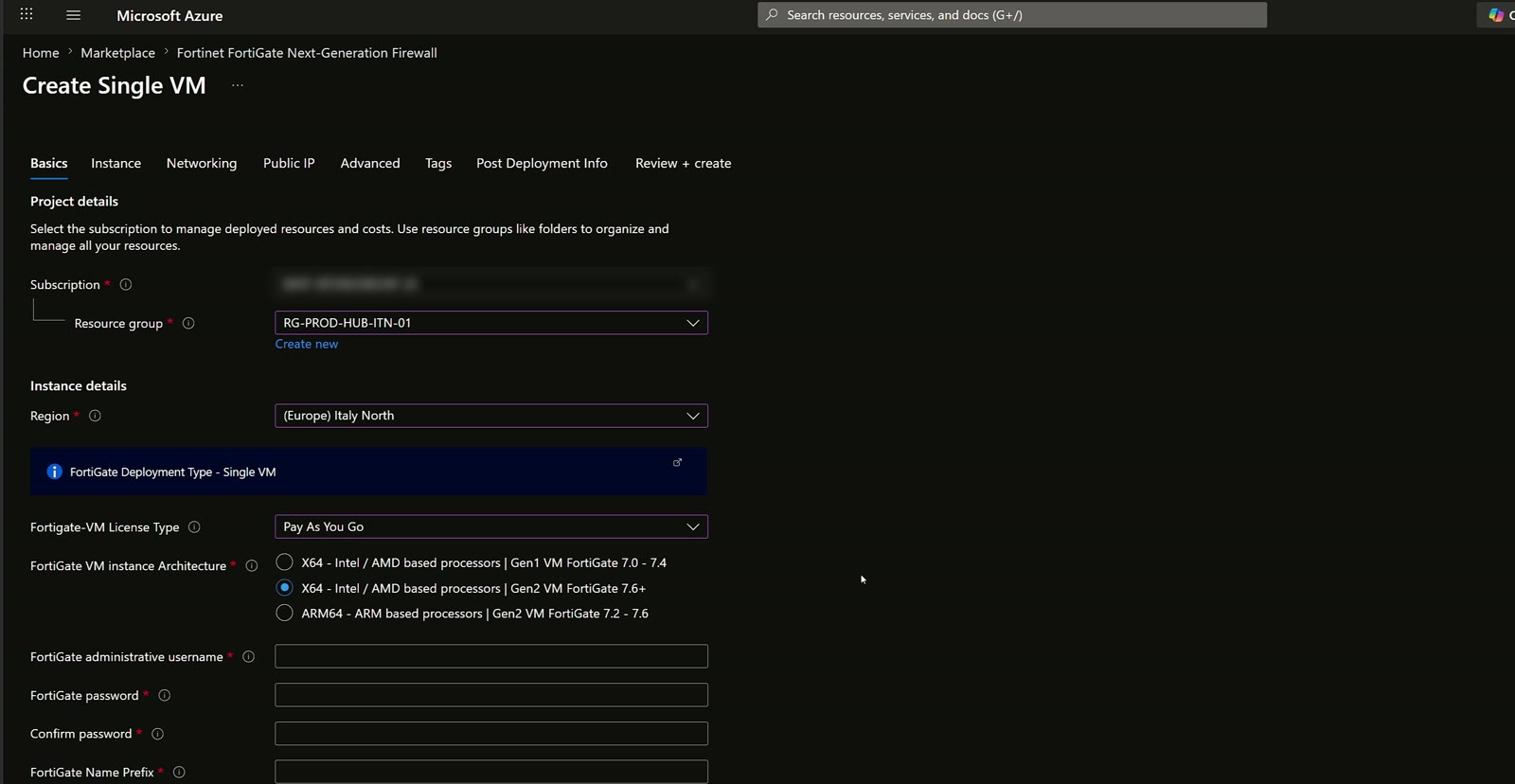
In the portal I search for “FortiGate” in the Marketplace and pick the first result, Fortinet FortiGate Next-Generation Firewall, the one referenced by Fortinet’s own documentation. From here you can choose active-passive, active-active or single VM: today I deploy the single VM.
Basics and instance
- Resource group: RG-PROD-HUB-ITN-01, which holds all hub resources.
- Region: Italy North.
- License: Pay As You Go. If you choose BYOL or FortiFlex, the wizard asks for the code before you can continue.
- Gen2 image: automatically starts from the latest published release, 7.6.
- Name, admin credentials and resource prefix.
In the instance section I change the default SKU: the wizard suggests a D4s v5, I choose a D2s v6 because it’s already Azure Boost. Two vCPUs and 8 GB of RAM are enough for my demo and, trust me, for many SMB scenarios. Here you can also pick an Availability Zone: with a single VM it’s not needed, but in high availability you’ll place one FortiGate in one zone and the second in another, so it pays to think about it early. For the name I prefer a “vm” prefix: vm-az-fgt-itn-01.
Networking and advanced
I select the hub VNet and the three subnets the wizard requires, which I had already created: external, internal and protected. The important ones are external and internal; the protected subnet is meant to host VMs protected by default rules, but honestly, I never use it.
I keep accelerated networking enabled, which offloads traffic to hardware bypassing the virtualization layer, and I attach a public IP dedicated to the FortiGate, bound to the external NIC, which, loosely speaking, you could call “the WAN”. Under Advanced you can connect a FortiManager (not today), and I leave the serial console enabled. Review, Create, and the VM is deployed.
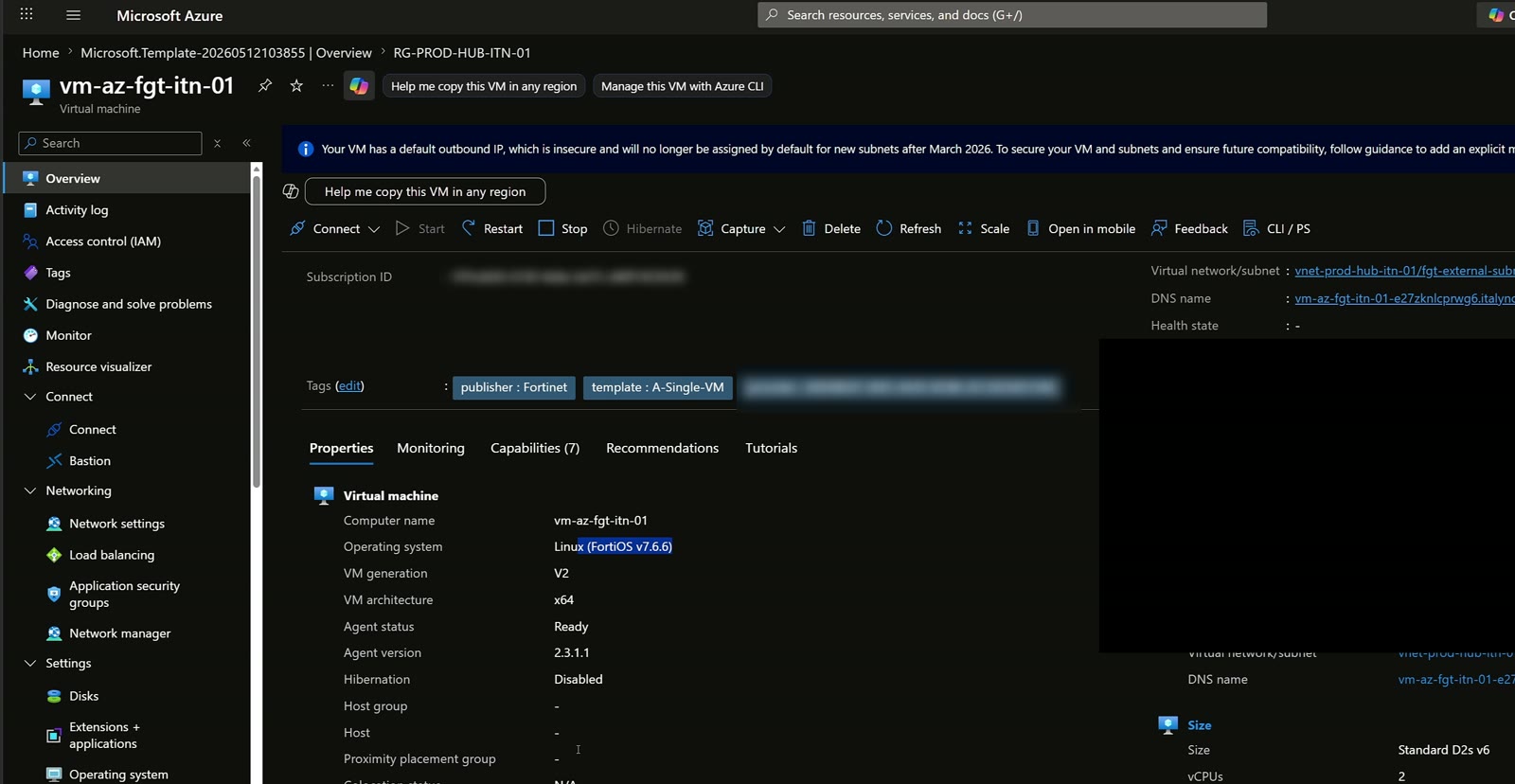
Using the public IP I access the FortiGate interface directly: my first firewall in Azure is online.
Why two NICs are needed
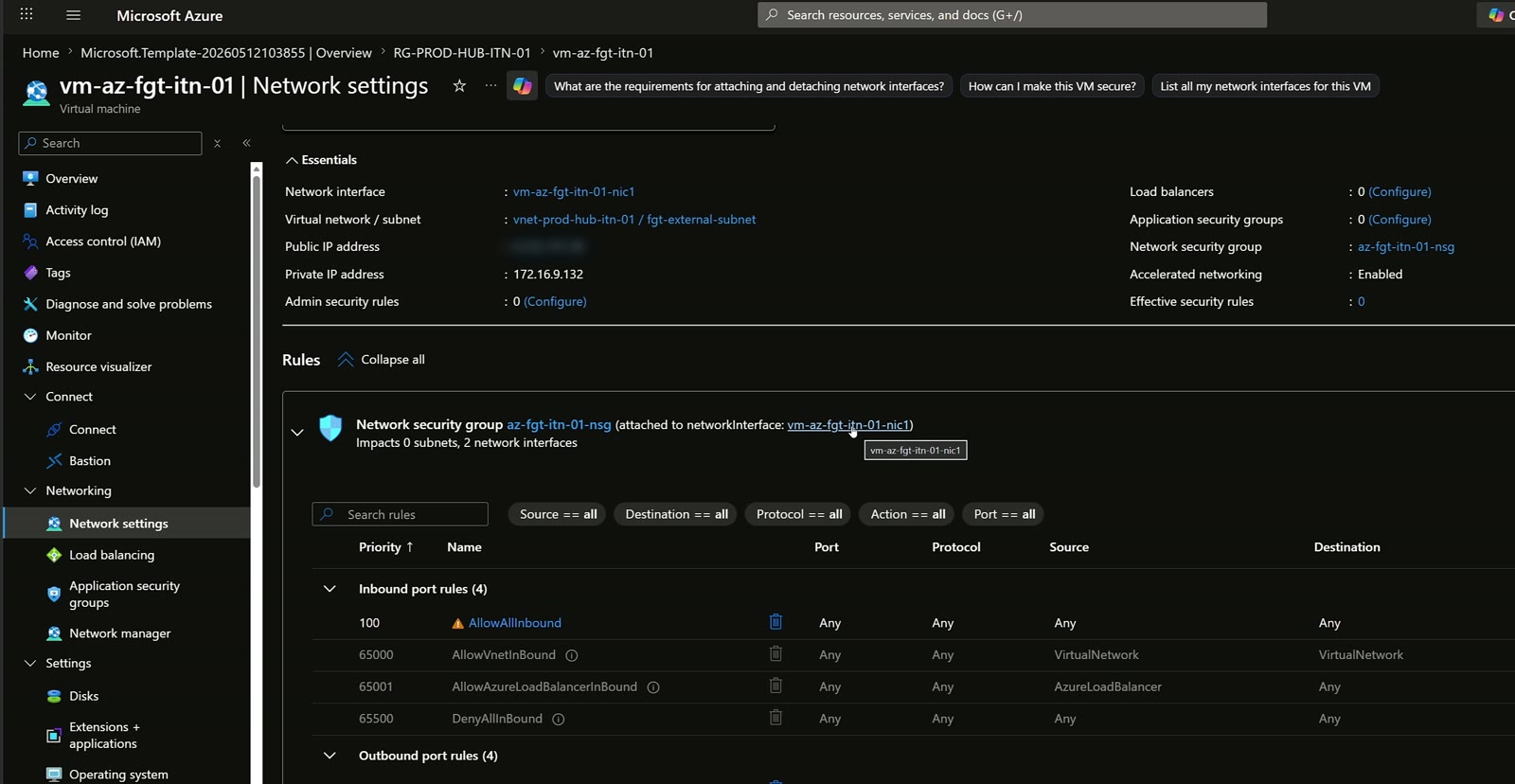
In Network settings notice the NSG applied directly to the FortiGate NICs. The primary NIC sits on the external subnet, with the public IP; the second on the internal subnet, with the private address the firewall answers on. In IP configurations you can add more IPs, including public ones.
The reason is simple: everything in Azure reaches the firewall on a private address, thanks to a route that sends traffic to the NVA. The external interface is the public one, reached for example by VPN or when publishing resources through a WAF. With these two interfaces I then build policies and rules that match the company’s security standards. If you’re interested in the VPN side, check my article on FortiGate SSL VPN with Active Directory and MFA.
Key takeaways
- An NVA in Azure almost always lives in the hub (or the Virtual WAN secure hub) and is a shared service.
- Always read the vendor documentation and start from its Marketplace image.
- Prefer Azure Boost VMs (v6 onwards) and test performance after deployment.
- Pay As You Go: 30-day FortiGate license trial, and with the VM stopped you only pay for storage.
- You need at least two NICs, but bandwidth is set by the SKU, not by the number of NICs.
- Next episode: routing, UDRs and AVD traffic through FortiGate.
Watch the video and let’s talk
You’ll find the full deployment in the YouTube video and more content on my YouTube page. Want to know more about me? Visit About. Evaluating a firewall in Azure for your company? Reach out on LinkedIn or via the contact form on Sessionize.

Written by
Cloud Solution Architect and Microsoft Azure MVP: landing zones, networking, security and hybrid cloud from the field.
Related articles
FortiGate in Azure: protecting PaaS with Private Endpoint
FortiGate in Azure and Private Endpoint: inspect traffic to PaaS services with UDR, NSG, private DNS and SNAT. Demo with storage account and AVD.
FortiGate in Azure: routing, UDR and keeping AVD traffic in check
FortiGate in Azure: base config, routing and UDRs to send Azure Virtual Desktop traffic through the firewall instead of letting it bypass it.
Fortinet: configuring an integrated LDAPS server in Active Directory
A guide to configuring an LDAPS server on FortiGate integrated with Active Directory and Enterprise CA certificates.