Azure Bastion: secure access to Azure VMs with no public IP
Azure Bastion step by step: dedicated subnet, Standard SKU deploy, browser RDP/SSH to VMs in hub and spoke, PIM and shareable links.
Last updated on
Table of Contents
- The context: a hub and spoke network
- Step one: the dedicated Azure Bastion subnet
- Creating the Azure Bastion resource
- How Bastion reaches VMs in the spokes
- Connecting to a VM from the browser
- Why Azure Bastion reduces the attack surface
- Shareable links: handy, but not for production
- Key takeaways
- Watch the video and let’s talk
With the Azure Tips & Tricks series I wanted to cover Azure services one at a time, without building a full infrastructure every time. The first one is Azure Bastion, the tool that lets you connect to your Azure virtual machines, Windows or Linux, straight from the portal in your browser, without exposing the VM to the Internet. In this article I show how I configured it, how I use it in a hub and spoke design, and what I think about the shareable links feature.
The context: a hub and spoke network
The lab is the same one used in my previous videos: a hub and spoke network design, where spoke VNets are connected to the hub VNet through peering. If you want to dig into building this topology, see my article on Azure Virtual Network Manager and hub and spoke.
I place Bastion in the hub network, the natural home for shared services. From there it can reach the machines living in the spokes.
Step one: the dedicated Azure Bastion subnet
The first thing to do before creating an Azure Bastion resource is to prepare a dedicated subnet in the VNet that will host it. The portal helps here: when you add a subnet you can set its purpose and pick Azure Bastion directly, so the settings the service requires are proposed for you.
| Parameter | Value |
|---|---|
| Subnet purpose | Azure Bastion |
| Size | /26 |
| Name | AzureBastionSubnet (fixed, cannot be renamed) |
| VNet | Hub network |
The name isn’t a choice: the subnet must have exactly that name. The only real decision is the address range, which I picked by continuing the numbering of the hub VNet.
Creating the Azure Bastion resource
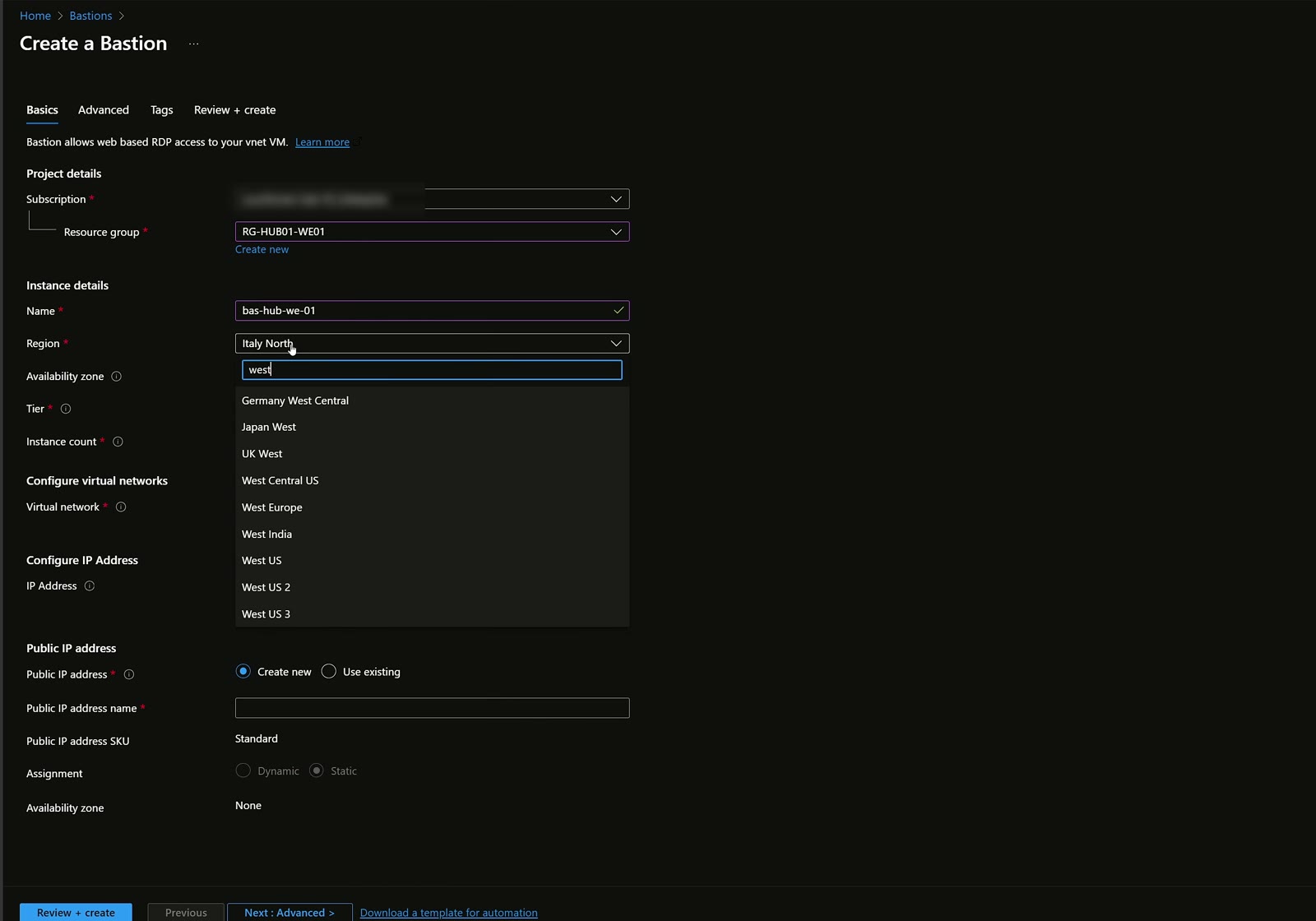
With the subnet ready, you move on to the resource itself. Searching for Bastion in the marketplace, the creation wizard asks for the usual parameters:
- Subscription and resource group: for simplicity I used the resource group dedicated to the hub network, RG-HUB01-WE01.
- Name: bas-hub-we-01, consistent with the lab naming convention.
- Region: West Europe.
- Availability zone: you can deploy the resource across zones; in the lab I didn’t.
- SKU: Standard, more than enough for my needs, with two instances.
- Virtual network: as soon as you select the hub network, the portal automatically proposes the AzureBastionSubnet you just created.
- Public IP: Bastion needs a Standard public IP for management, which I created on the fly.
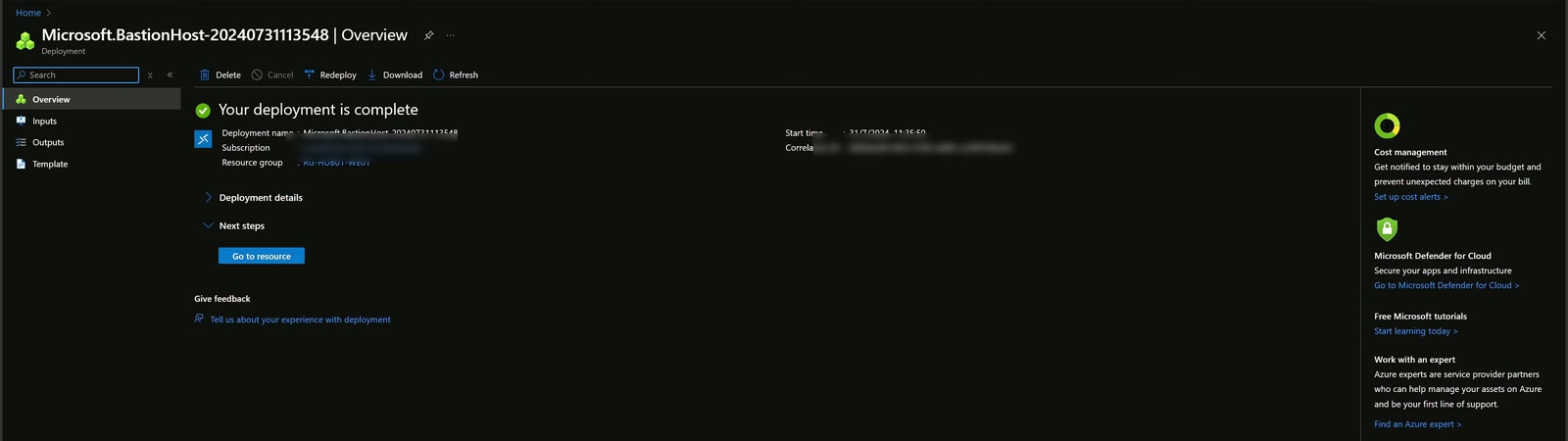
On the next tab you choose the additional features. In the lab I selected all of those available for the Standard SKU, so I could explore them later. At the time of recording the deployment took about 15 minutes.
How Bastion reaches VMs in the spokes
Bastion lives in the hub network, but the VM I want to manage sits in a spoke. It works because every spoke has a two-way peering to the hub: Network Security Groups aside, traffic can flow in both directions.
A Bastion placed in the hub network can reach virtual machines in every peered VNet, even when it’s global VNet peering.
That means you don’t need one Bastion per network: a single, well-placed one covers the whole connected perimeter.
Connecting to a VM from the browser
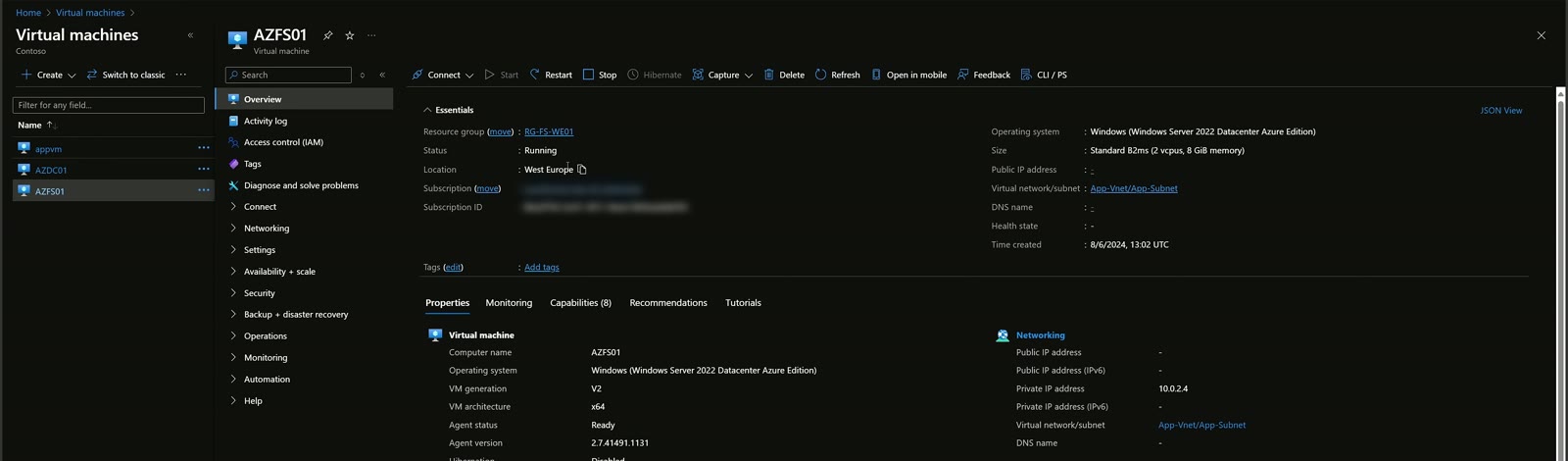
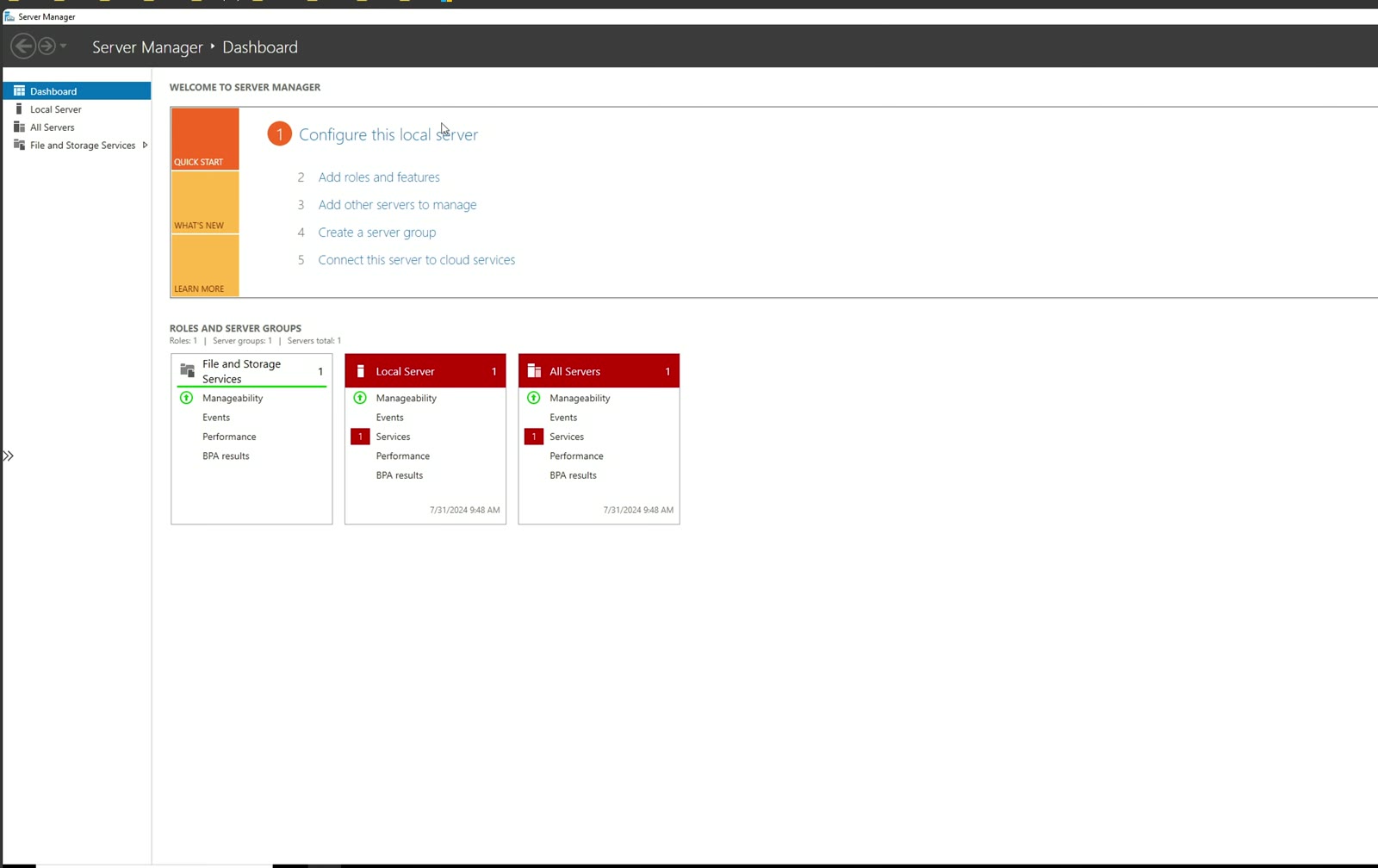
For the test I started the AZFS01 VM, Windows Server 2022 Datacenter Azure Edition, in App-Vnet, subnet App-Subnet. The spoke has its own subnet for applications and the peering to the hub, nothing more. Above all, the machine has no public IP: only the private address 10.0.2.4.
From the VM you choose Connect and then Connect via Bastion. The options are simple:
- the keyboard language, Italian in my case;
- the authentication method, including the option to use a password stored in a Key Vault; in the video I simply used username and password;
- the clipboard redirect permission, requested by the browser.
After connecting, the RDP session opens in a web page.
Why Azure Bastion reduces the attack surface
This is the part I care about most. If the machine isn’t exposed and can only be reached through the Azure portal, access inherits every control you put in front of the portal:
- Conditional Access and MFA for portal sign-in;
- Entra ID PIM to grant permission to connect to the VM only when authorized.
Think of an external vendor: they sign in with Conditional Access plus MFA, request permission through PIM to log in to the machine, and then reach the target VM with only copy and paste via the clipboard, without being able to transfer files. I covered this scenario in Entra ID PIM for groups and in the article on multi-layer protection for Azure virtual machines.
One caveat: if the VM has unrestricted Internet access, anyone can open a browser, go to OneDrive and take out whatever they want. For real security you also need to govern the Internet access of your virtual machines.
Shareable links: handy, but not for production
The last feature I showed is shareable links, and I’ll say it up front: I’m not a big fan. They let you generate a link to send to anyone; whoever opens it sees the Bastion console and, by entering the VM credentials, gets into the machine. The problem is that this skips the Azure portal entirely, and with it Conditional Access and PIM.
To create one, go to the Bastion resource, Shareable links section, click Add, select the VM’s resource group, pick the target machine and confirm with Apply. The link is active immediately: in the video I opened it in a private Firefox window, just to show it works in other browsers too. The mechanism is very similar to OneDrive sharing.
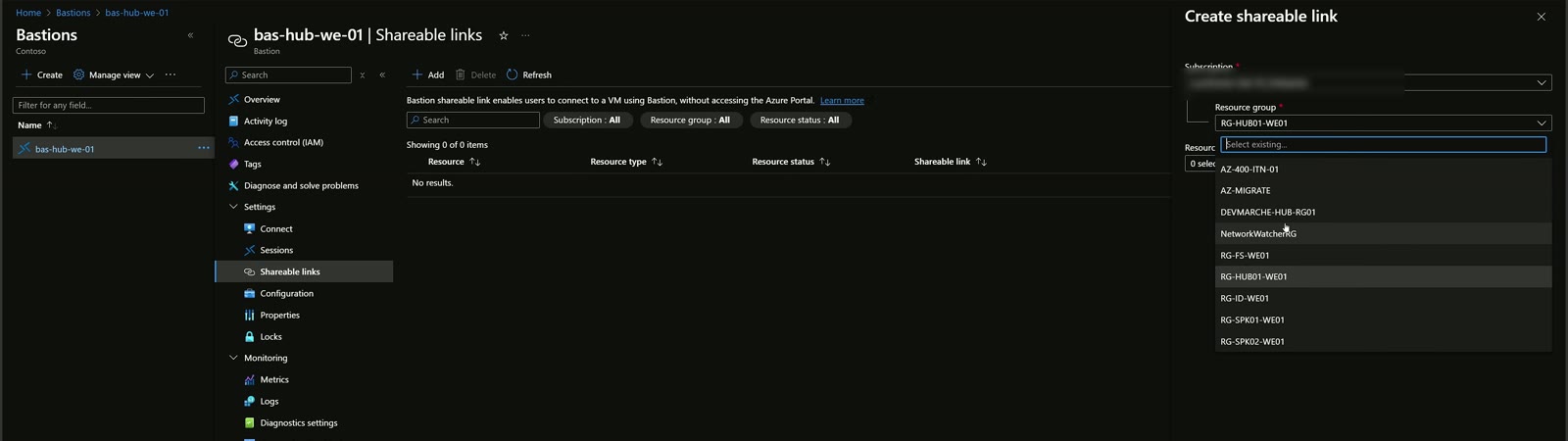
I would only use them on test machines isolated from production, when you need to share a configuration quickly. For production, no.
Key takeaways
- Azure Bastion provides RDP and SSH access to Windows and Linux VMs from the browser, with no public IPs on the machines.
- It requires a dedicated /26 subnet that must be named AzureBastionSubnet.
- A Bastion in the hub reaches VMs in all peered VNets, global peering included.
- The real value comes from combining it with Conditional Access, MFA and Entra ID PIM.
- You must also govern VM Internet access, otherwise data exfiltration is still possible.
- Shareable links bypass the portal: test environments only.
- Bastion is one component, not the only one, of a Zero Trust landing zone.
Watch the video and let’s talk
The full demo is in the YouTube video, and the other episodes are on my channel. If you’re designing VM access for your landing zone, reach out on LinkedIn or find me on Sessionize; you can read more about me.

Written by
Cloud Solution Architect and Microsoft Azure MVP: landing zones, networking, security and hybrid cloud from the field.
Related articles
Multilayer protection for Azure virtual machines: JIT, Bastion, PIM
Multilayer protection for Azure virtual machines: Defender for Cloud JIT, Azure Bastion and Entra ID PIM combined for secure, audited VM access.
Leveraging PIM Managed Groups to manage Just-in-Time access to Azure resources
A guide to using Microsoft Entra ID PIM Managed Groups to manage Just-in-Time access to the RBAC roles of Azure resources.
Entra ID PIM: just-in-time privileged access to resource groups
How I use Entra ID PIM for groups: eligible Azure roles, activation with MFA and justification, notifications and least privilege on landing zones.