Entra ID PIM: just-in-time privileged access to resource groups
How I use Entra ID PIM for groups: eligible Azure roles, activation with MFA and justification, notifications and least privilege on landing zones.
Last updated on
Table of Contents
When I run an assessment of a Microsoft Azure infrastructure, identity is one of the first things I look at. The perimeter is no longer the firewall and the four walls of the company: with more and more multicloud approaches, the new perimeter is the identity of each individual, and that is where we need to protect ourselves as effectively as possible. In this Azure Tips & Tricks episode I show how to secure landing zones with Entra ID PIM (Privileged Identity Management), applied to the groups that govern RBAC roles.
What Entra ID PIM is and why it matters
The concept is very simple: a role, or membership in a group, is granted only when it is requested and approved. There is no need to be owner or contributor of a subscription or resource group 24 hours a day: maybe we need it for the four hours planned for a specific task. PIM therefore implements Just-in-Time Administration and the least privilege principle: we get privileged access only for the time required, then we go back to being standard users.
On licensing, at the time of recording PIM required Entra ID P2, was included in the Entra Suite and in some specific Microsoft 365 plans. My opinion is clear: Entra ID P1 alone is not enough to fully manage identity security.
Azure infrastructures should always be managed through PIM: finding subscriptions with 20 owners or 40 permanent contributors, often without MFA, is simply not acceptable.
Step 1: the security group in Entra ID
I assume you already manage Azure resources through user groups assigned to RBAC roles (Contributor, Virtual Machine Contributor and so on). So the first step is creating a Security group in Entra ID.
I use a naming convention that tells you everything about the group: GRP-SEC means security group, PIM says it is dedicated to Privileged Identity Management, followed by the controlled resource group, the region (West Europe) and the role (Contributor). In production the description should always be filled in, in English.
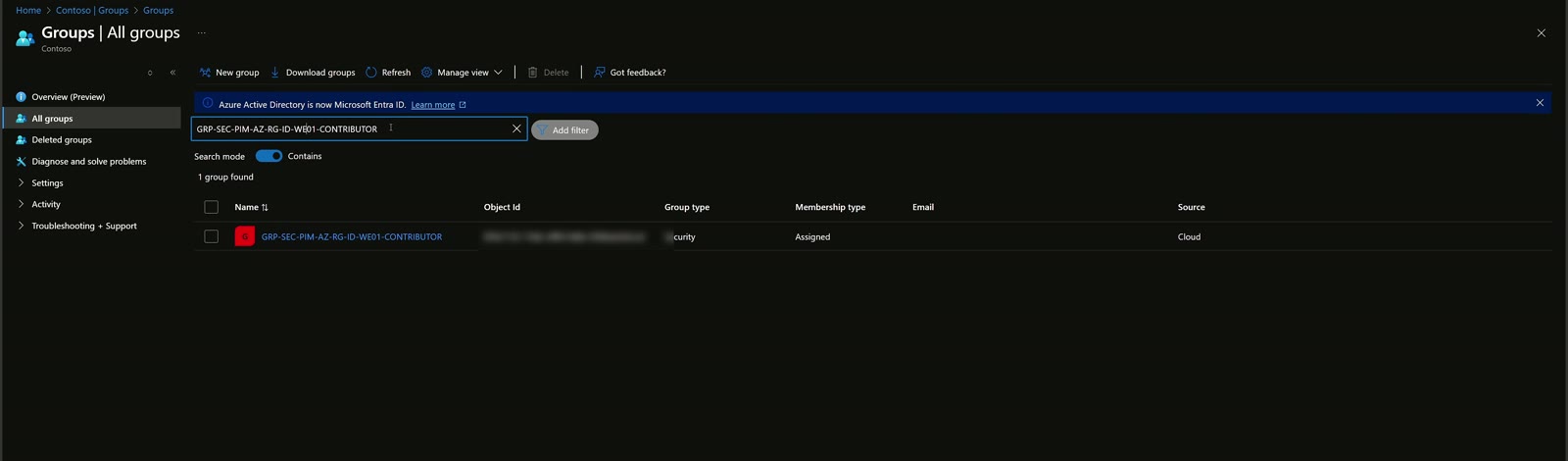
A few configuration details:
| Setting | Chosen value | Why |
|---|---|---|
| Group type | Security | Needed to assign RBAC roles |
| Entra ID role assignment to the group | Not used | It applies to Entra ID roles, here we govern Azure RBAC |
| Membership type | Assigned | Memberships will be handled by PIM |
| Owners and members | None | The group starts empty |
Step 2: assign the RBAC role to the resource group
Before bringing the group into PIM, I assign it to the target resource group, the one containing the VM to control along with its network interface, disk and the rest. From Access control (IAM) > Role assignments I add an assignment with the Contributor role and select the group. After Review + assign, the group is contributor of the resource group, but with no members it grants access to nobody.
Step 3: onboard the group into PIM
In the Privileged Identity Management section dedicated to groups I select the group and use Manage groups: from now on the group is controlled by PIM. Then I move to assignments and, for the demo, choose an eligible assignment as Member for the test user: they can request contributor access when needed, within an eligibility window of up to one year, configurable in the PIM settings.
Eligible or active?
- Eligible: you always have to request permission to use the role.
- Active: the role is assigned and yours 24 hours a day, with an expiration or permanently. Permanently active, in my view, doesn’t make much sense.
I always prefer eligibility, perhaps with no end date for internal IT, although these processes should be reviewed periodically (every six months, ideally every 90 days) to check that the configuration still matches corporate and security requirements.
Step 4: role settings
Settings are configured at group level, separately for Member and Owner. This allows, for example, slightly more permissive rules for internal IT and stricter ones for members, perhaps external consultants.
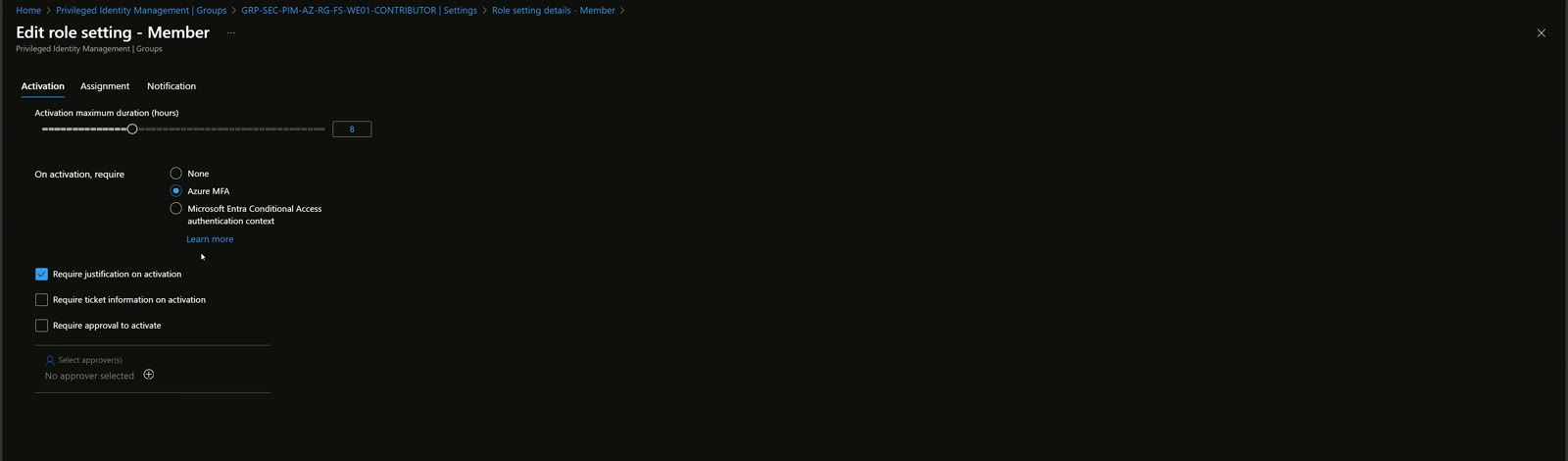
The most interesting settings:
- Maximum activation duration: 8 hours, 12 hours… it depends on policies to agree with project owners and infrastructure managers.
- MFA on activation: be careful, if you already completed MFA to sign in to the Azure portal you won’t be asked again. That’s why I recommend using authentication contexts, if available: they let you require a different MFA for specific resources, for example phishing-resistant MFA with FIDO2 keys, certificates or Windows Hello for Business. Accessing PIM is very different from opening OneDrive or Microsoft 365.
- Required justification, optionally with ticket information: essential to keep track of activities.
- Approval: an upstream team decides whether to grant access. You need a SOC or a dedicated group that answers in reasonable time, though: an external consultant getting access after four hours is not acceptable. You have to design a process.
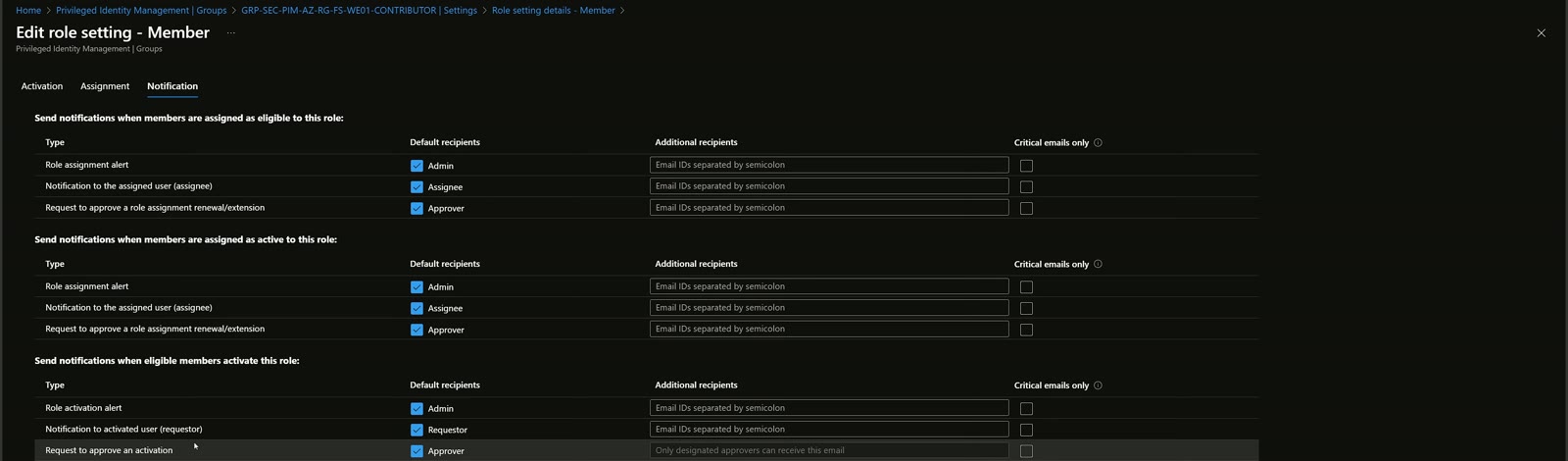
The notification section is very rich: you can add distribution lists so alerts always reach the right people. Also, as documented by Microsoft, a notification is sent 14 days before an eligibility expires.
The user experience: activating the role
Signing in to the Azure portal with the test user (credentials plus MFA), nothing is visible at subscription or resource group level. From Privileged Identity Management > My roles > Groups, the user finds their eligible assignments.
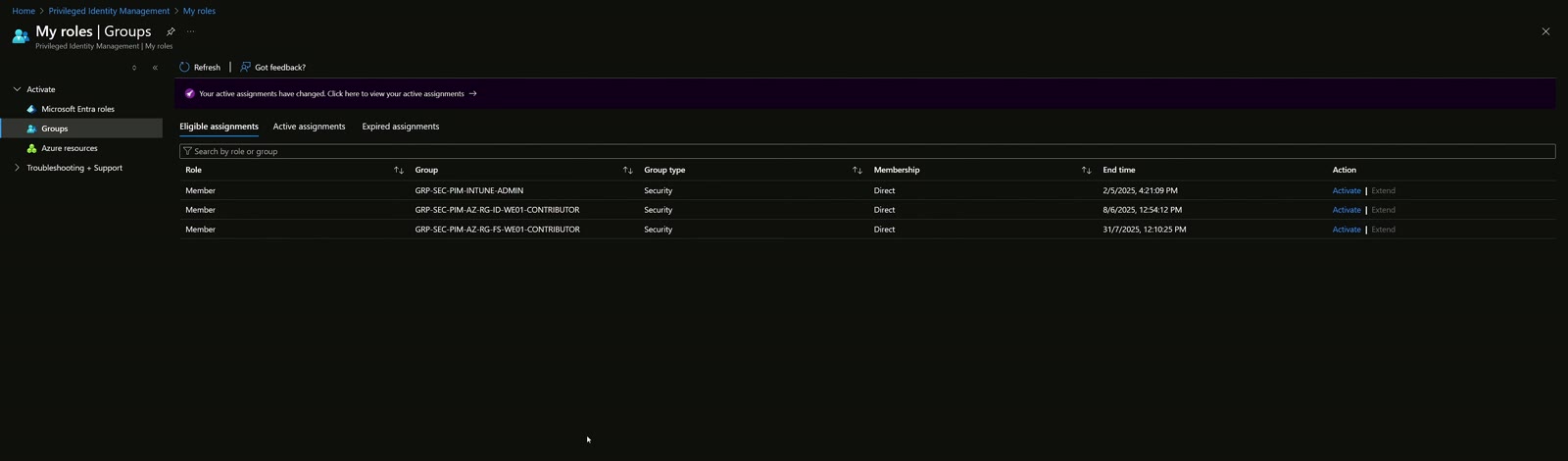
I select the group granting contributor access, click Activate, set half an hour (more than enough for the task) and write the justification. In the demo approval is automatic, for obvious timing reasons.
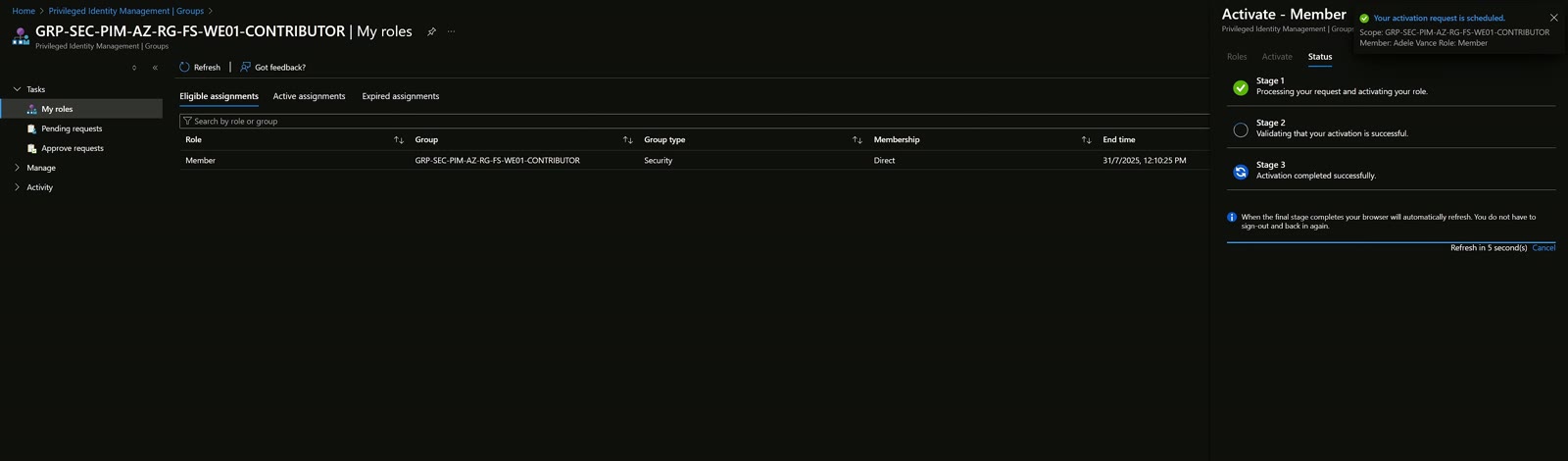
After the refresh the user is a member of the group, which is contributor of the resource group: refreshing subscriptions they see the target one and the resource group, can manage resources and start the VM. In Access control > Check access they confirm they are Contributor. When the activation expires, they are a standard user again.
Key takeaways
- Identity is the new perimeter: Entra ID PIM brings just-in-time and least privilege to Azure roles.
- The pattern: security group, RBAC role on the resource group, PIM onboarding, eligible assignments.
- Differentiate settings between Member and Owner, for example external consultants vs internal IT.
- An MFA already completed isn’t requested again: consider authentication contexts with phishing-resistant MFA.
- Justification, approval and notifications only work with a process behind them, reviewed periodically.
If you also want to protect VM access, read how to combine JIT, Bastion and PIM in multi-layer protection for Azure virtual machines and the article on Azure Bastion.
Watch the video and let’s talk
You can find the full demo in the YouTube video and other episodes on my YouTube channel. If you’re thinking about introducing PIM in your organization, reach out on LinkedIn: you can also find me on Sessionize and read more about me.

Written by
Cloud Solution Architect and Microsoft Azure MVP: landing zones, networking, security and hybrid cloud from the field.
Related articles
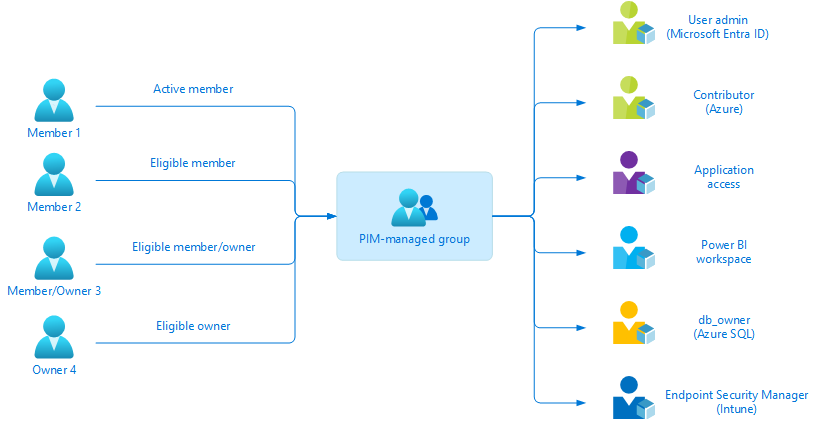
Leveraging PIM Managed Groups to manage Just-in-Time access to Azure resources
A guide to using Microsoft Entra ID PIM Managed Groups to manage Just-in-Time access to the RBAC roles of Azure resources.
Multilayer protection for Azure virtual machines: JIT, Bastion, PIM
Multilayer protection for Azure virtual machines: Defender for Cloud JIT, Azure Bastion and Entra ID PIM combined for secure, audited VM access.

Azure Bastion: secure access to Azure VMs with no public IP
Azure Bastion step by step: dedicated subnet, Standard SKU deploy, browser RDP/SSH to VMs in hub and spoke, PIM and shareable links.