Microsoft Scout: I cloned my work PC and started truly delegating
Microsoft Scout on Windows 365 with GitHub Copilot: prerequisites, how it differs from Copilot Cowork, custom MCP servers and the process-to-skill method.
Last updated on
Table of Contents
- What Microsoft Scout is
- My setup: a 1:1 copy of my workstation on Windows 365
- Processes first, agent second
- Microsoft Scout prerequisites
- Scout vs Copilot Cowork: models and custom MCP servers
- 1. I choose the model
- 2. MCP servers, including custom ones
- Scout vs Copilot Cowork at a glance
- Demo: Scout browsing like a human
- Results and method: from processes to skills
- Key takeaways
- Watch the video and let’s talk
Right now Microsoft Scout is one of the AI tools giving me the most satisfaction, full stop. It was announced at Build this year and is available to Frontier program participants. In short, Microsoft took an idea that already existed, agents like OpenClaw or Hermes Agent, and is turning it into an enterprise solution. Here’s how I use it every day on a Windows 365 Cloud PC, and why I think it genuinely changes the way you work.
What Microsoft Scout is
Scout is essentially Microsoft’s OpenClaw, or Microsoft’s Hermes Agent. The way I see it, the goal is to create a real second operator: one that works exactly like me and can reach everything I give it access to on my work computer.
For me that means proposals, documents, research and advanced troubleshooting, all done with the tools already installed on my PC.
My setup: a 1:1 copy of my workstation on Windows 365
If you’ve seen my previous videos, you know that for personal use I built an always-on agent on Azure Virtual Desktop: a Windows 11 machine running the GitHub Copilot CLI and Hermes Agent, with GitHub as the model router. That approach actually came to me from looking at how Scout works.
For work, I replicated the same pattern the enterprise way:
- I have a Windows 365 license, so a Cloud PC assigned to me;
- on that Windows 11 machine I installed my entire work suite and company tools;
- I installed Microsoft Scout and, as the documentation requires, connected it to my GitHub Copilot Business license.
The result is a one-to-one copy of my workstation, reachable at any time of day.
Processes first, agent second
Before giving Scout any instructions, I thought about processes: what do I do most often that adds little value? Writing documents, checking the CRM, checking Power BI dashboards, monitoring a specific mailbox. I described each of these activities, turned it into a skill, a recipe the model can reproduce, and assigned it to Scout.
Microsoft Scout prerequisites
According to Microsoft, you need:
- Windows 11 or macOS Monterey;
- a Microsoft 365 Work or School account (Personal accounts don’t work today, which makes sense to me);
- a Microsoft 365 Copilot license assigned to your account;
- the latest Microsoft Visual C++ Redistributable (Windows only);
- admin rights to install Scout, plus an Intune configuration (the documentation covers all of this in depth);
- a GitHub Copilot Business or Enterprise license.
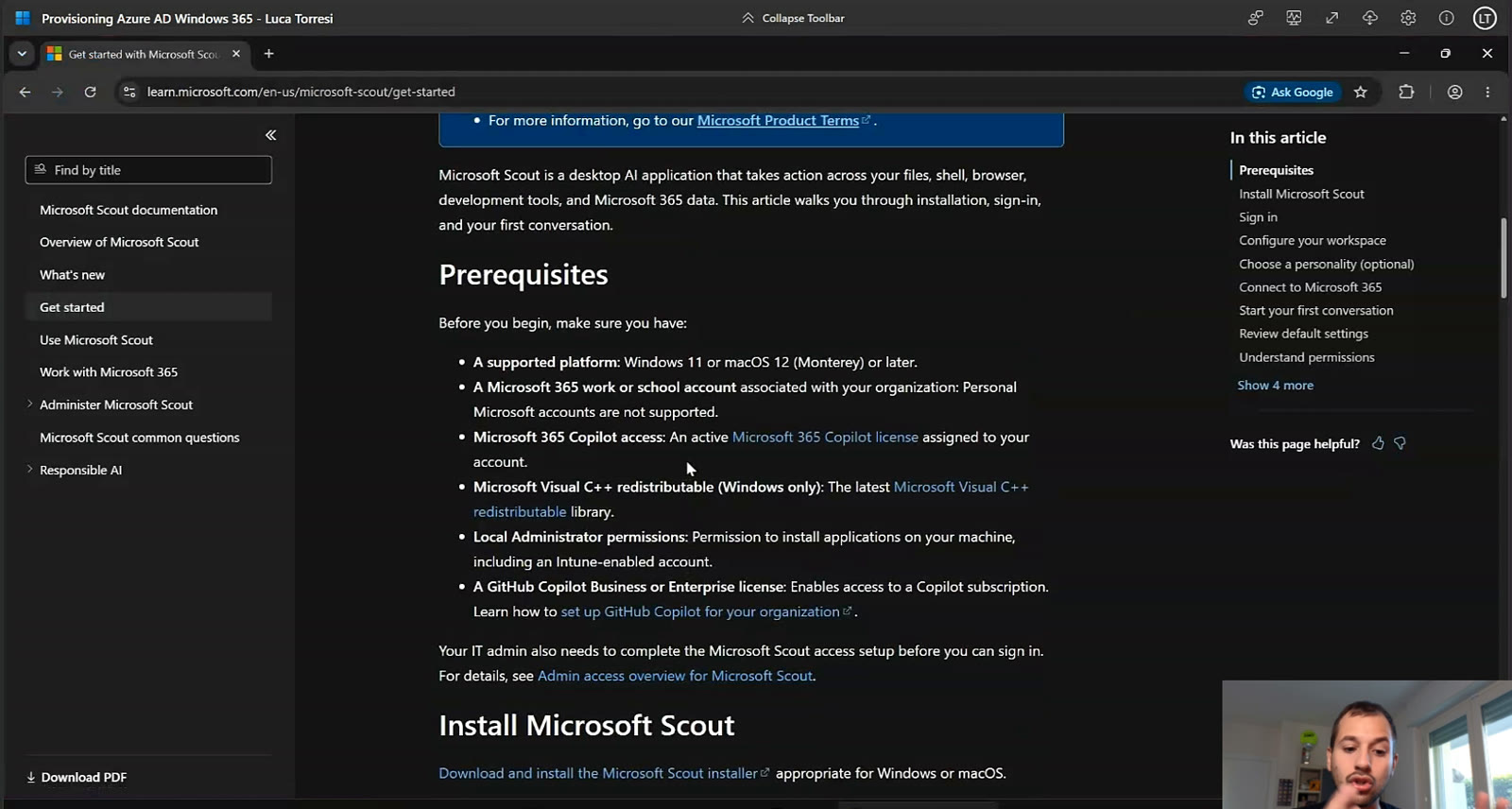
Licensing-wise, the bar is high. But I’m not selling you anything: this tool can really change how you work. Once the prerequisites are in place and Intune enablement is done, find the download on the web, install it and launch it.
Scout vs Copilot Cowork: models and custom MCP servers
What Scout suggests at startup, Copilot Cowork can do too. So why pick Scout? For me the answer is simple, and it comes down to two things.
1. I choose the model
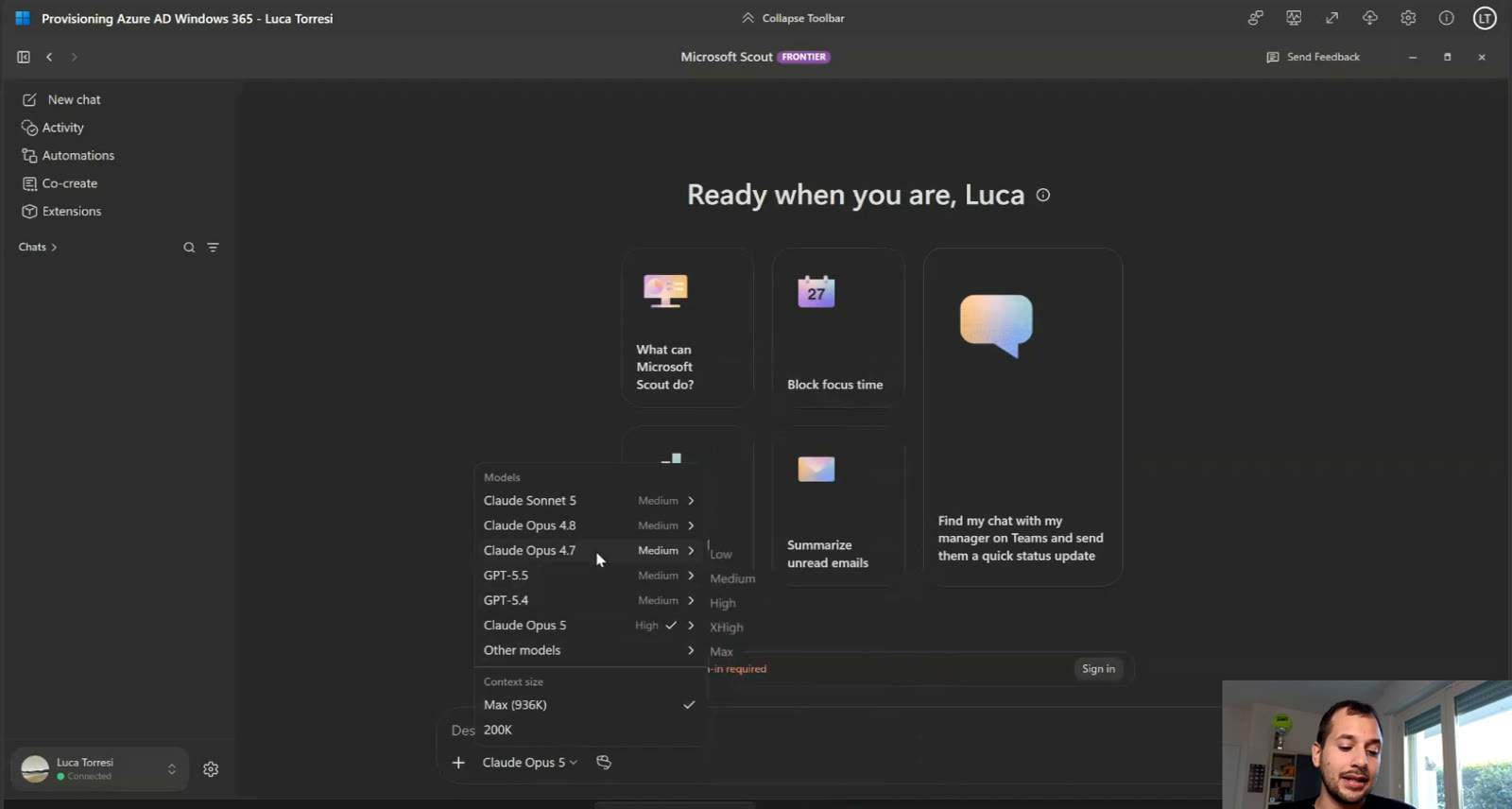
Scout uses GitHub Copilot, just like OpenClaw and Hermes Agent do, to reach the models. So I get everything GitHub Copilot serves: from Claude Opus 4.7 to Claude Opus 5, which I consider one of the best models today in terms of performance and token cost; the whole GPT-5.6 family, including GPT-5.6 Luna, very handy for tasks like document review; GPT-6 Astra, released a week ago and genuinely impressive; plus Grok, Gemini, DeepSeek and MAI, Microsoft’s own models. I pick the model, not the platform on my behalf.
2. MCP servers, including custom ones
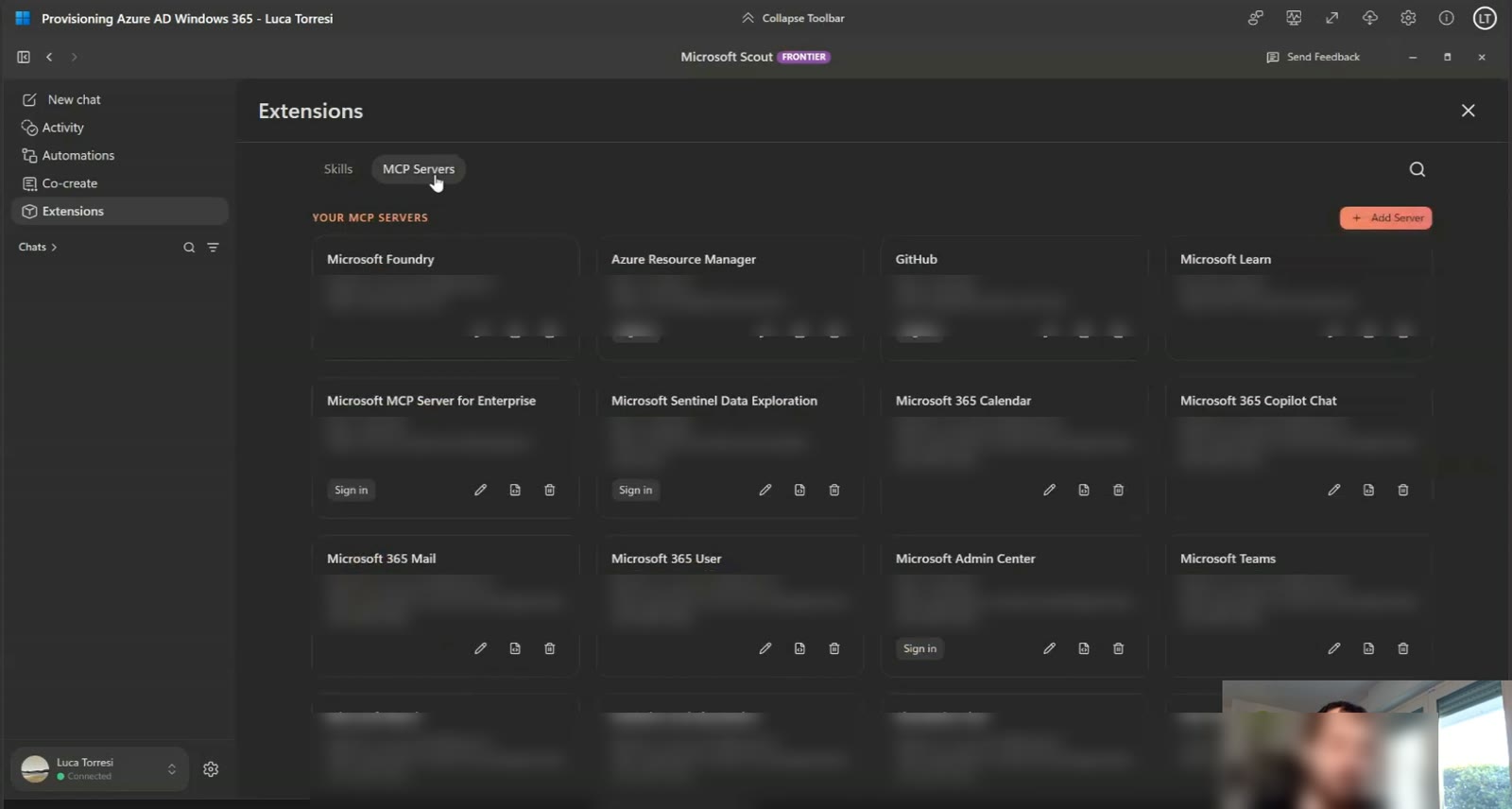
This is the real game changer. The usual objection is that Cowork, being part of the Copilot suite, pulls user context through WorkIQ. True. But in Scout, besides the skills I’ve built for my day-to-day, I can add MCP servers, including custom ones. With Cowork I’m forced through plugins, meaning a store. That’s tight corporate control, sure, but I want the freedom to integrate with different tools.
MCP is a driver to an external source: it gives the model context and visibility so its answers are more precise, the famous harness everyone talks about. I want an MCP for SAP, SQL Server, Azure, Foundry, Fabric (which Cowork actually already has), or for SharePoint, OneDrive and Teams to rebuild that WorkIQ-style context. Then I can ask: “I’ve had 10 meetings with this customer, there are transcripts, 10 emails and 10 Teams messages: draft a note for the next meeting and email it to me.”
Scout vs Copilot Cowork at a glance
| Microsoft Scout | Copilot Cowork | |
|---|---|---|
| Model choice | Every model served by GitHub Copilot, my choice | The platform decides |
| Extensions | Skills and MCP servers, including custom ones | Store plugins |
| User context | Via MCP (SharePoint, OneDrive, Teams…) | Built in through WorkIQ |
| Approach | More integration freedom | More corporate control |
Demo: Scout browsing like a human
I can’t show my real chats in the video: it’s a production instance with data better kept private. So here’s an example instead. I pick a lighter, fast model, GPT-5.6 Luna, and ask Scout to open an online newspaper (ilfattoquotidiano.it) and give me a press review in the chat, 30 lines max, grouped by topic. I asked for Chrome, it opened Edge, probably because it’s the default browser; it went through the news and returned the review.
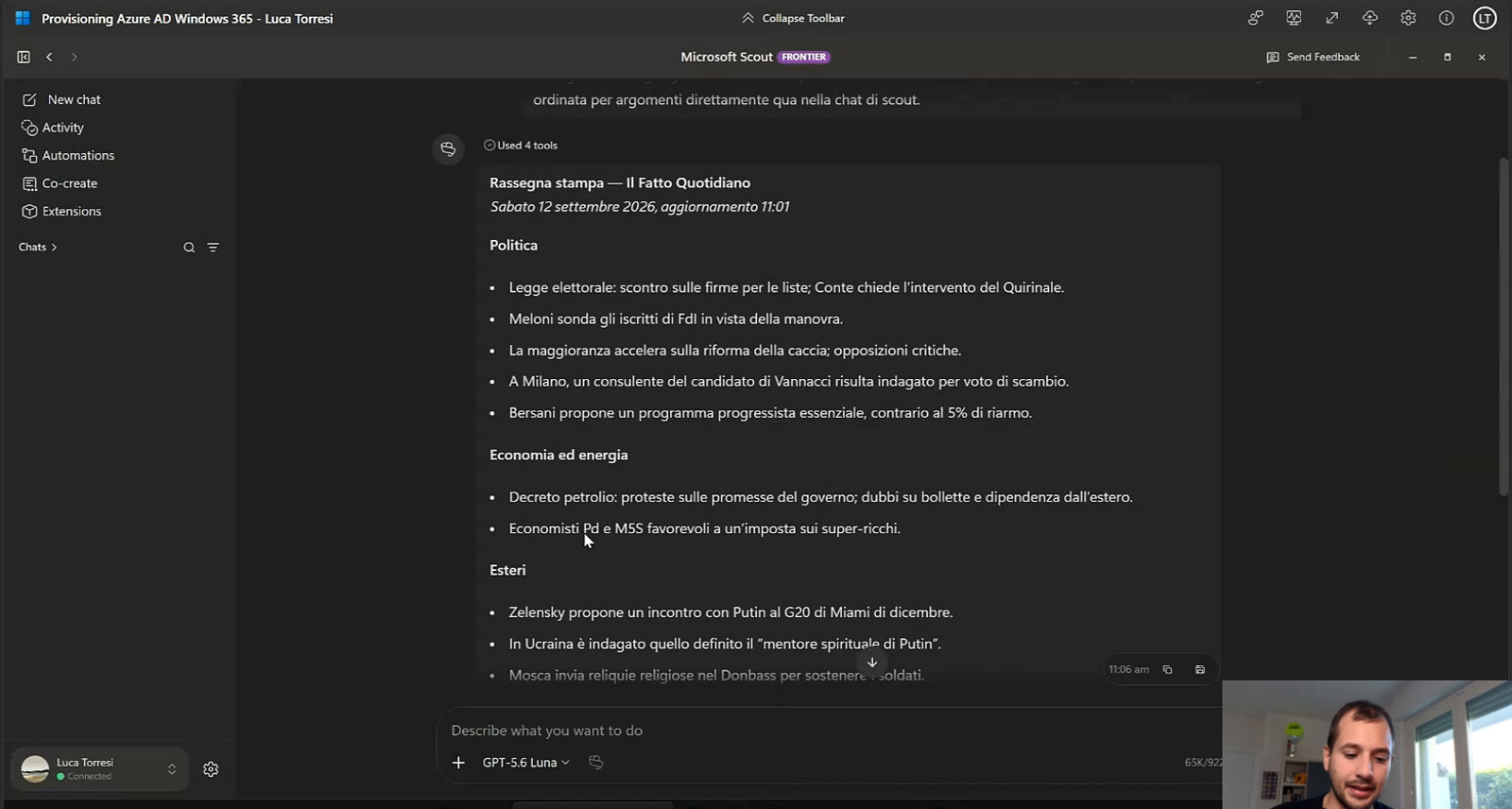
The point isn’t the press review: it’s that Scout can operate like a human. If I lose fifteen minutes every morning reading data scattered across two or three systems that don’t talk to each other, I can tell it: open the browser, grab these ten metrics, these ten KPIs, and email me a summary plus a static HTML dashboard I can browse directly. The principle is simple: delegate to Scout the mechanical work you don’t feel like doing.
And it all runs on my virtual machine: I can kick off tasks from a Teams chat or from Windows 365, on my phone, PC, Mac or iPad. For me, that’s the real game changer: an agent stacking solution supported and organized directly by Microsoft, with all the enterprise policies.
Results and method: from processes to skills
Today we can genuinely clone our PC, and with it a part of ourselves, to delegate work. In my experience I got a measurable 3x in performance, and I track my results very closely. As a hypothetical presales example: if I used to deliver 5 documents a week, with this tool I can do 15. Why? Because we defined the processes, the processes became skills, and the skills became recipes for the various LLMs to get the job done.
The three-step method: start from processes, turn them into skills, assign them to Scout.
Today a freelancer, a small business or a sole trader can compete on productivity, and on quality too, with much larger companies, simply by using these tools the right way.
Key takeaways
- Microsoft Scout is an enterprise agent in the OpenClaw/Hermes Agent mold, available to Frontier program participants.
- Prerequisites are demanding: Microsoft 365 Copilot, GitHub Copilot Business/Enterprise, a Work or School account, Intune and admin rights.
- On Windows 365 you get a 1:1 copy of your workstation, always reachable, including from Teams and mobile.
- Compared with Copilot Cowork: you choose the model and can use custom MCP servers instead of store-only plugins.
- The method: start from processes, turn them into skills, assign them to Scout.
Watch the video and let’s talk
The full demo is in the YouTube video (in Italian), and you’ll find more on my YouTube page. If you want to talk about it, reach me on LinkedIn or check my talks on Sessionize; there’s more about me here. No fluff: jump on this train.

Written by
Cloud Solution Architect and Microsoft Azure MVP: landing zones, networking, security and hybrid cloud from the field.
Related articles
GitHub Copilot CLI with managed identity: hub & spoke on Azure
I run GitHub Copilot CLI on Azure Virtual Desktop with the VM's managed identity and MCP servers to deploy a hub & spoke network on Azure.
Always-on AI agent on Azure Virtual Desktop that works for you
How I built an always-on AI agent on Azure Virtual Desktop with Hermes Agent and GitHub Copilot: Word docs, news digests and Telegram.