Azure Arc: what it is and how to onboard your first machine
Azure Arc brings Microsoft cloud capabilities to on-premises and multi cloud servers: requirements, benefits and a step-by-step first server onboarding.
Last updated on

Table of Contents
- What Azure Arc is
- What Azure Arc brings to the table
- Monitoring: the alerts everyone asks for
- Security for Linux too
- Update Manager and WSUS
- Minimum requirements and costs
- Networking
- Azure Arc onboarding of the first machine
- 1. Create the service principal
- 2. Generate the script
- 3. Run the script on the server
- 4. Verify in the portal
- Key takeaways
- Watch the video and let’s talk
Azure Arc is one of my favourite services in the Microsoft ecosystem, because it breathes new life into a world that seemed to have nothing left to say: on-premises. In this article I explain what Azure Arc is, what it brings to the table, the minimum requirements and, above all, how I onboarded the first machine in my lab.
What Azure Arc is
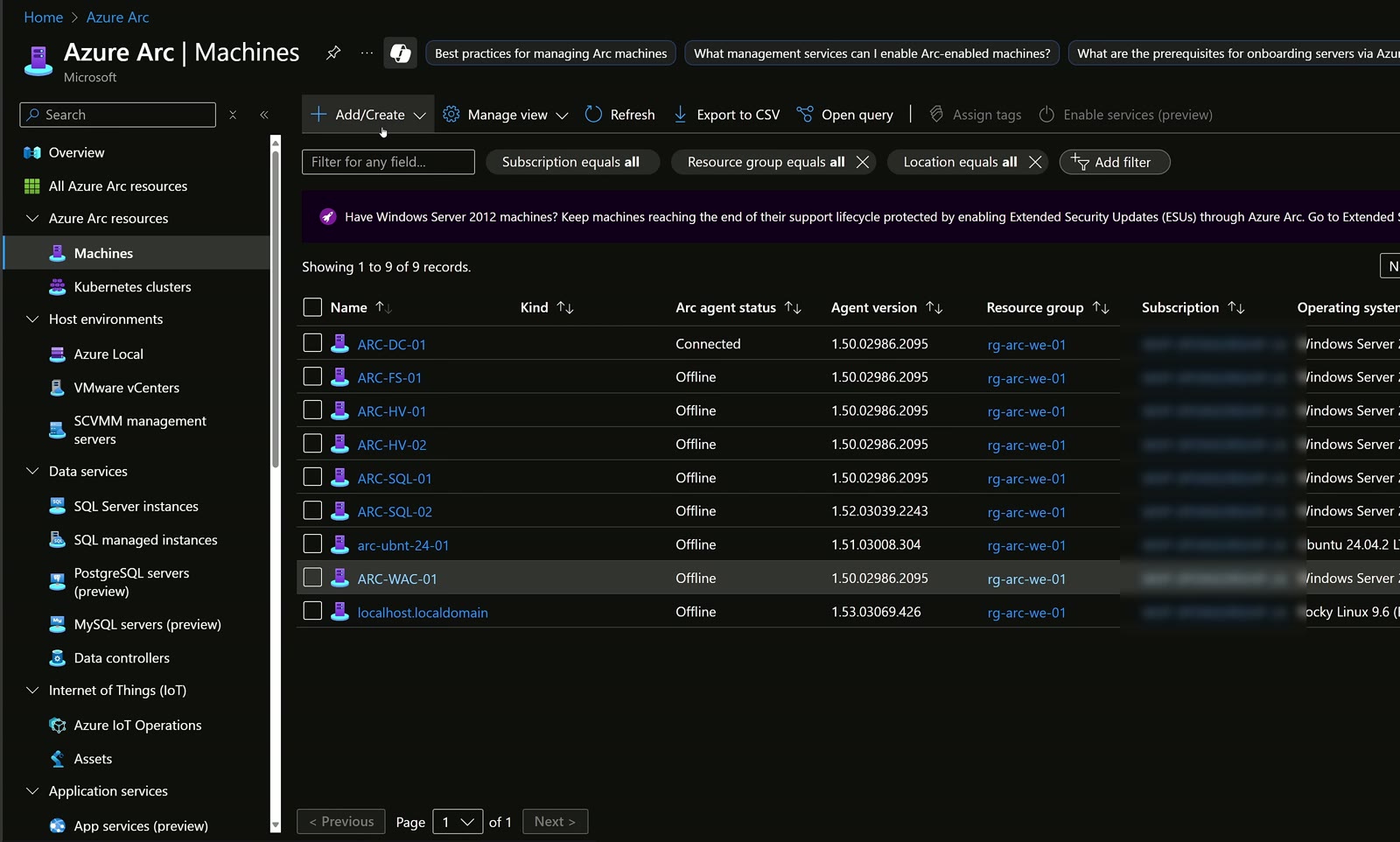
Essentially, Azure Arc is an agent: a program you install on your Windows and Linux servers, physical or virtual, wherever they live: your data center, AWS, GCP or a VM bought from a local hosting provider. The benefit is bringing capabilities that used to be exclusive to the Microsoft cloud straight into your data centers or multi cloud scenarios. Of course, Arc makes no sense on Azure VMs: everything it offers is already built in there. The agent also installs on Windows 10 and 11, including IoT devices.
What Azure Arc brings to the table
Once the agent is installed, I get a single control plane in the Azure portal for the whole fleet. The main services are:
| Area | What Azure Arc gives me |
|---|---|
| Inventory | List of servers and software, plus dependency analysis between servers |
| Monitoring | Azure Monitor for alerts and log ingestion, e.g. system administrator logs |
| Updates | Patch orchestration with Azure Update Manager |
| Security | Defender for Cloud, i.e. Defender for Servers and Cloud Security Posture Management |
| Out-of-support servers | Extended Security Updates (ESU), for example for Windows Server 2012 |
It’s a truly holistic approach: no matter where the machine lives, I manage it from the same pane.
Monitoring: the alerts everyone asks for
My team gets these requests all the time: alert me when the disk drops to 20% free space, or when CPU stays above 50% for 15 minutes, or email me when a specific event shows up in the Windows Event Viewer. With Arc, a single Azure Monitor rule covers the whole fleet, cross platform.
Security for Linux too
Defender for Servers applies to both Windows and Linux. Linux servers must be protected and patched: OS, kernel, web server and yes, an antivirus too.
Update Manager and WSUS
The question I get most: Azure Update Manager can rely on on-premises repositories, for both Windows and Linux. If you have WSUS and use GPOs to point servers at it, you can keep doing so: orchestration, scheduling and reboots are governed by Arc plus Update Manager.
Minimum requirements and costs
To get started you need:
- an Entra ID tenant;
- an Azure subscription, which Arc hooks into to bill the extra services;
- appropriate RBAC roles to manage the Arc scope;
- a supported operating system: most Linux distributions are supported, but check yours; on Windows Server support starts at least from 2012;
- connectivity to Microsoft public endpoints.
I want to be precise here: installing Azure Arc is free. Keeping your servers in Arc for inventory costs nothing; what you pay, pay-as-you-go per resource, are the services you build on top, such as Update Manager, Defender for Cloud and Azure Monitor.
My advice is to dedicate a subscription to Arc: it’s a completely different asset from the rest of Azure, and keeping it separate simplifies governance, policies and delegated management.
Networking
The agent talks to Microsoft public endpoints, so servers must be able to reach the cloud. The options I covered in the video are three:
- Azure Arc Gateway, in preview at the time of recording: a single machine goes out to the internet while the others stay, so to speak, without browsing;
- a Next Generation Firewall allowing outbound traffic only to specific public IPs and URLs;
- Private Endpoint, routing Arc traffic through your Site-to-Site VPN or ExpressRoute.
Azure Arc onboarding of the first machine
1. Create the service principal
The onboarding script authenticates through Entra ID to register the machine, so you need a valid service principal. I created a new one, scoping it only to the resource group that holds my Arc resources.
On secret lifetime my advice is clear: don’t set long expirations. The service principal still has privileges: do the job and then let the secret expire. The only role needed is Azure Connected Machine Onboarding. The secret can be read only once, so download it right away: you’ll need it in the script.
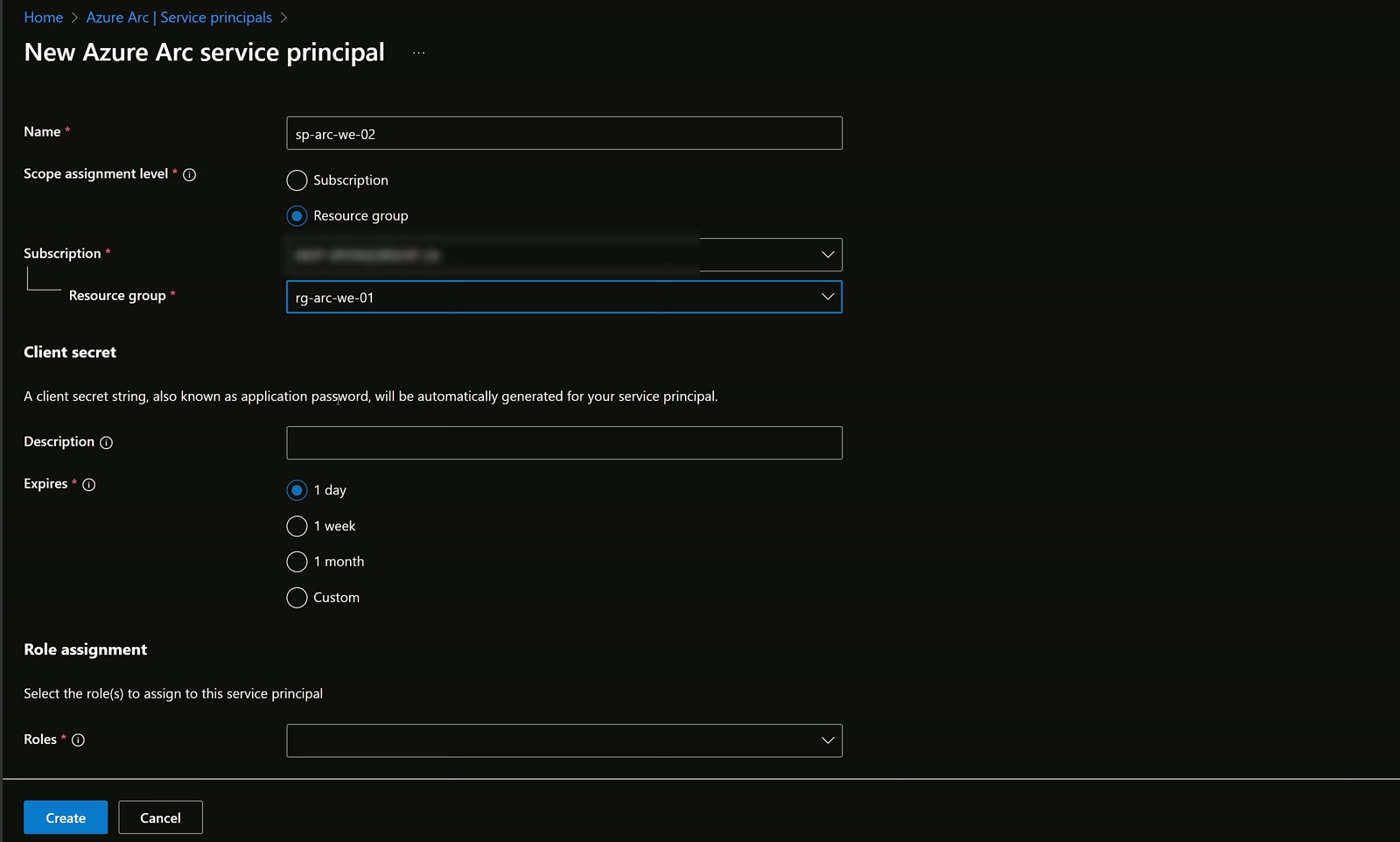
Mind the permissions of whoever performs these steps: besides the Azure role on the resource group, generating the service principal requires an Entra role such as Cloud Application Administrator. Avoid Global Administrator if you can.
2. Generate the script
From Machines > Add I chose to add multiple servers, so a single script can register even ten of them. I selected the resource group, the region (I use West Europe, which at the time of recording gave me the full feature set, including SQL Server capabilities), the operating system, the connectivity method (public endpoint, private endpoint or gateway) and the service principal I had just created. Then the tags.
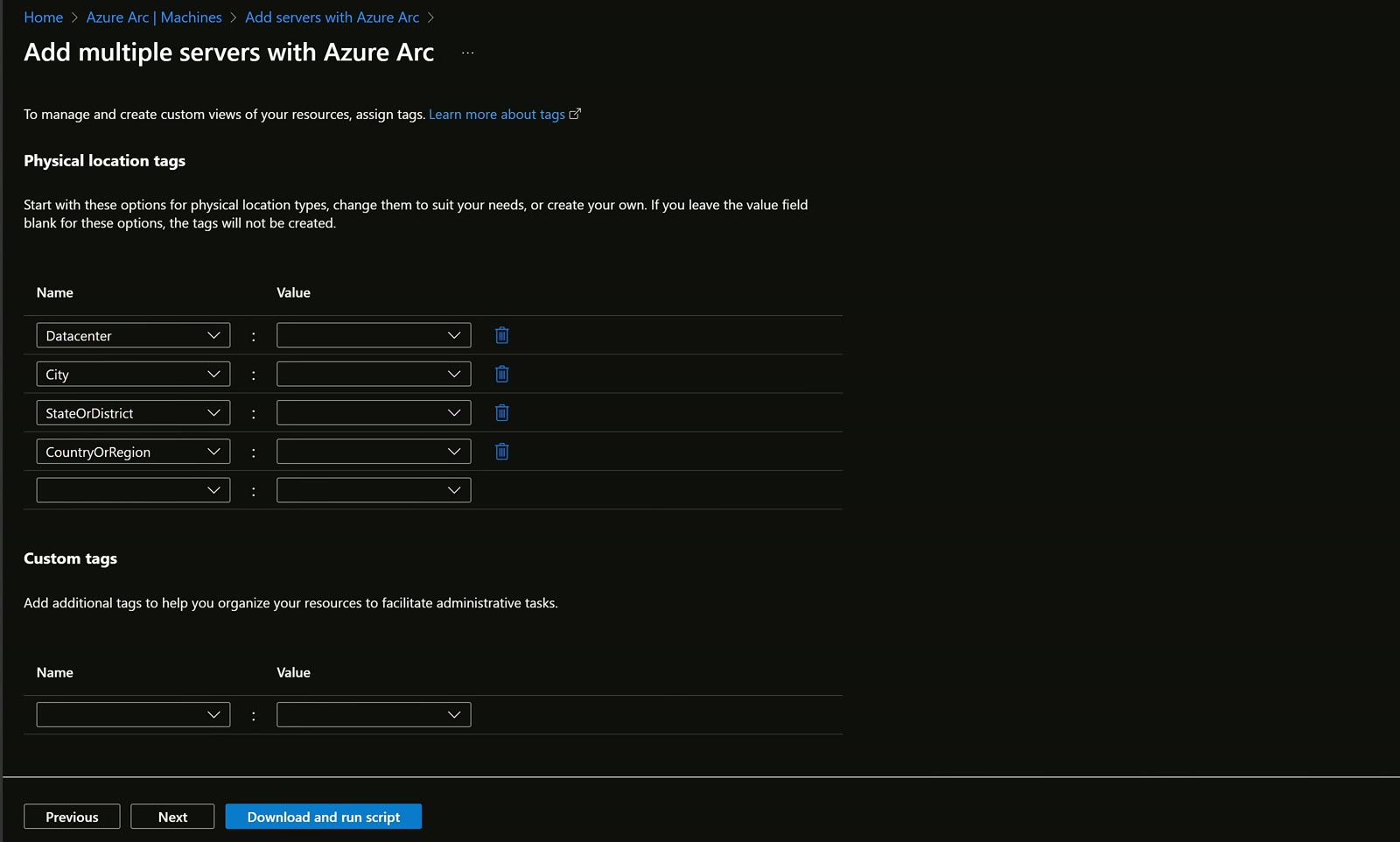
The wizard also offers deployment via Group Policy or Configuration Manager. In the generated script the service principal ID is already filled in: only the secret is missing, and you add it manually.
3. Run the script on the server
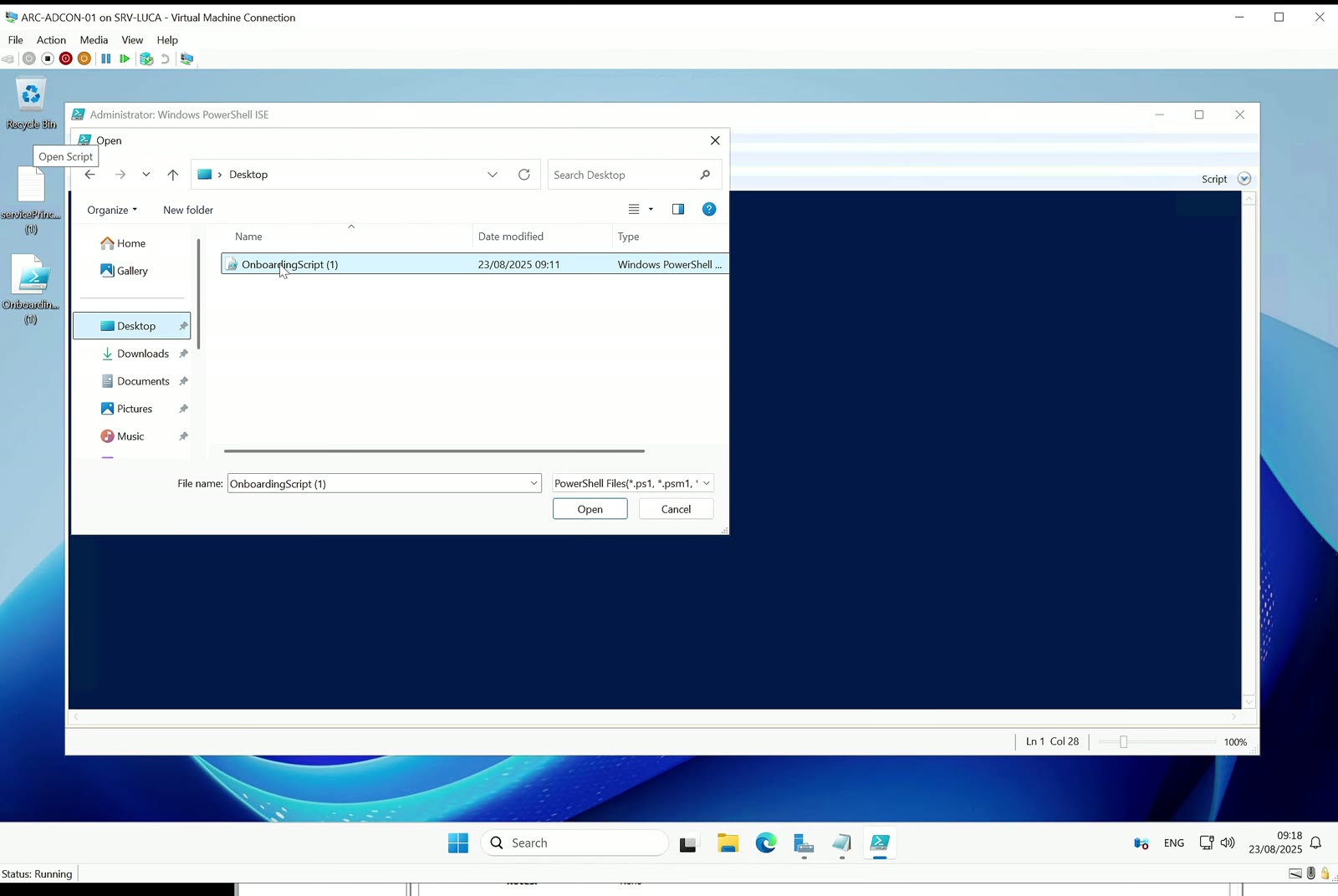
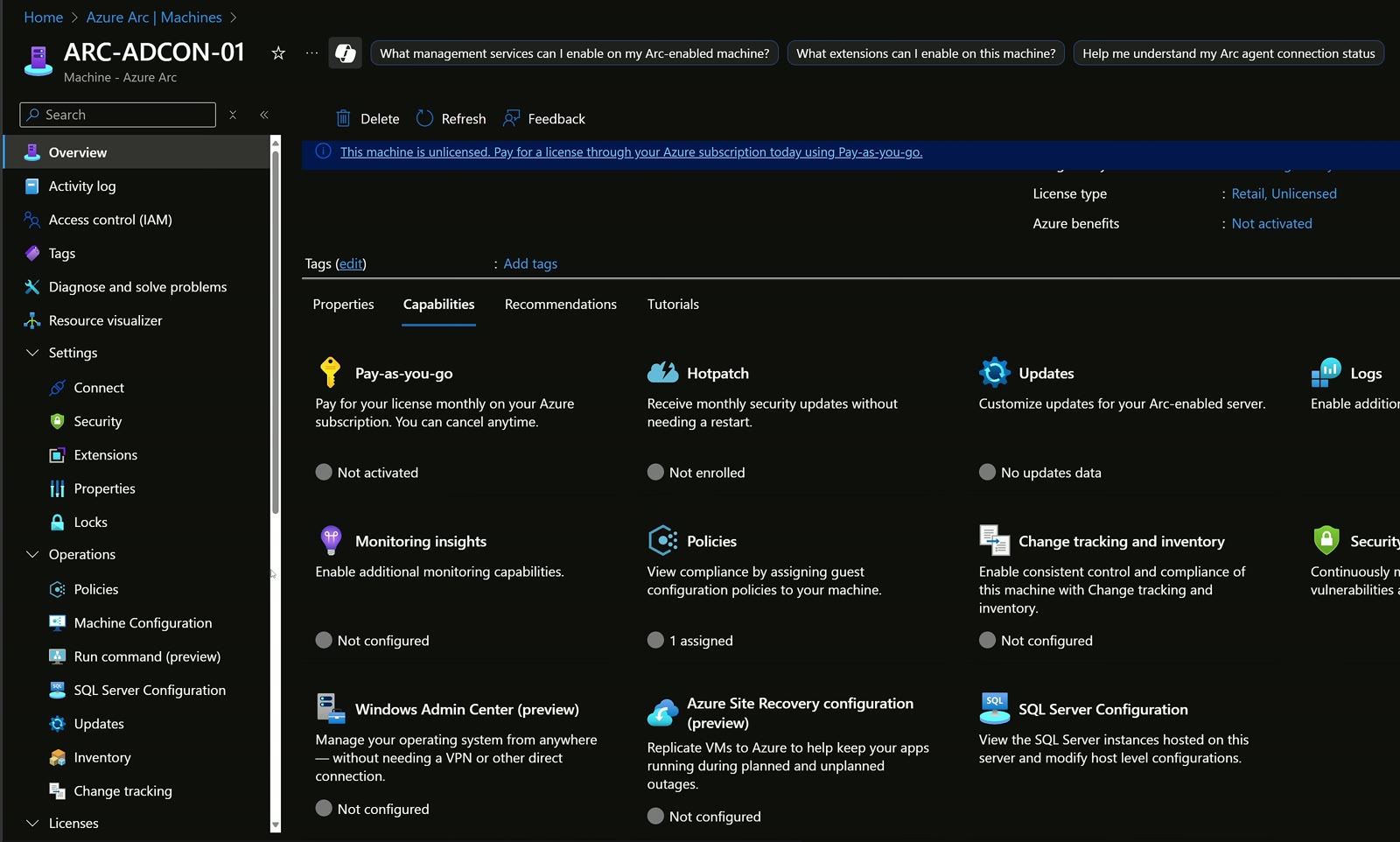
On my Hyper-V host I picked a VM on DHCP, not even joined to Active Directory. First I renamed it to ARC-ADCON-01: changing the name after onboarding is complicated and means re-registering it. After the reboot I copied the script and the secret file, opened PowerShell ISE as administrator (local administrator rights are required), pasted the secret and, after checking that firewall rules allowed outbound traffic, ran the script.
4. Verify in the portal
The machine shows up among the Arc servers. In the overview, the Capabilities tab immediately lists everything you can enable to bring cloud features into your data center, wherever it is.
Key takeaways
- Azure Arc is an agent that brings Microsoft cloud services to on-premises and multi cloud Windows and Linux servers.
- Onboarding is free; add-on services are billed pay-as-you-go.
- A dedicated Arc subscription simplifies governance and policies.
- Use a minimally scoped service principal, the Azure Connected Machine Onboarding role and a short-lived secret.
- Rename the server before onboarding.
- Update Manager orchestrates patching even with on-premises WSUS.
To dig deeper: Microsoft Learn and the ictpower.it community. On VM security, see also multi-layer protection for Azure virtual machines.
Watch the video and let’s talk
You’ll find the full demo in the YouTube video and more content on the YouTube page. To learn more about me, visit About. Questions about Azure Arc, or planning to onboard your servers? Reach out on LinkedIn or through the Sessionize contact form.

Written by
Cloud Solution Architect and Microsoft Azure MVP: landing zones, networking, security and hybrid cloud from the field.
Related articles

Multilayer protection for Azure virtual machines: JIT, Bastion, PIM
Multilayer protection for Azure virtual machines: Defender for Cloud JIT, Azure Bastion and Entra ID PIM combined for secure, audited VM access.

GitHub Copilot CLI with managed identity: hub & spoke on Azure
I run GitHub Copilot CLI on Azure Virtual Desktop with the VM's managed identity and MCP servers to deploy a hub & spoke network on Azure.

Always-on AI agent on Azure Virtual Desktop that works for you
How I built an always-on AI agent on Azure Virtual Desktop with Hermes Agent and GitHub Copilot: Word docs, news digests and Telegram.